- In this section we will be learning how to use CMD to control the Windows operating system
- We will learn how to use the command prompt .
- I will show you the resource where you can learn the Windows command prompt.
- hey my name is
Let's start with Command Prompt basics#
The command line or also known as cmd.exe that is the default command line intercept for the Windows operating system. The CMD command can allow to execute a command, the direct interpreter is then executed by the operator system you can use a command to list files checking the status of the network interface read a file inside CMD and a lot of commands, you can use them and we will learn the commands in the next section , before typing some command we need to know how you can access the command prompt.
- we have different option to open CMD I will show you how to open CMD with the /m option.
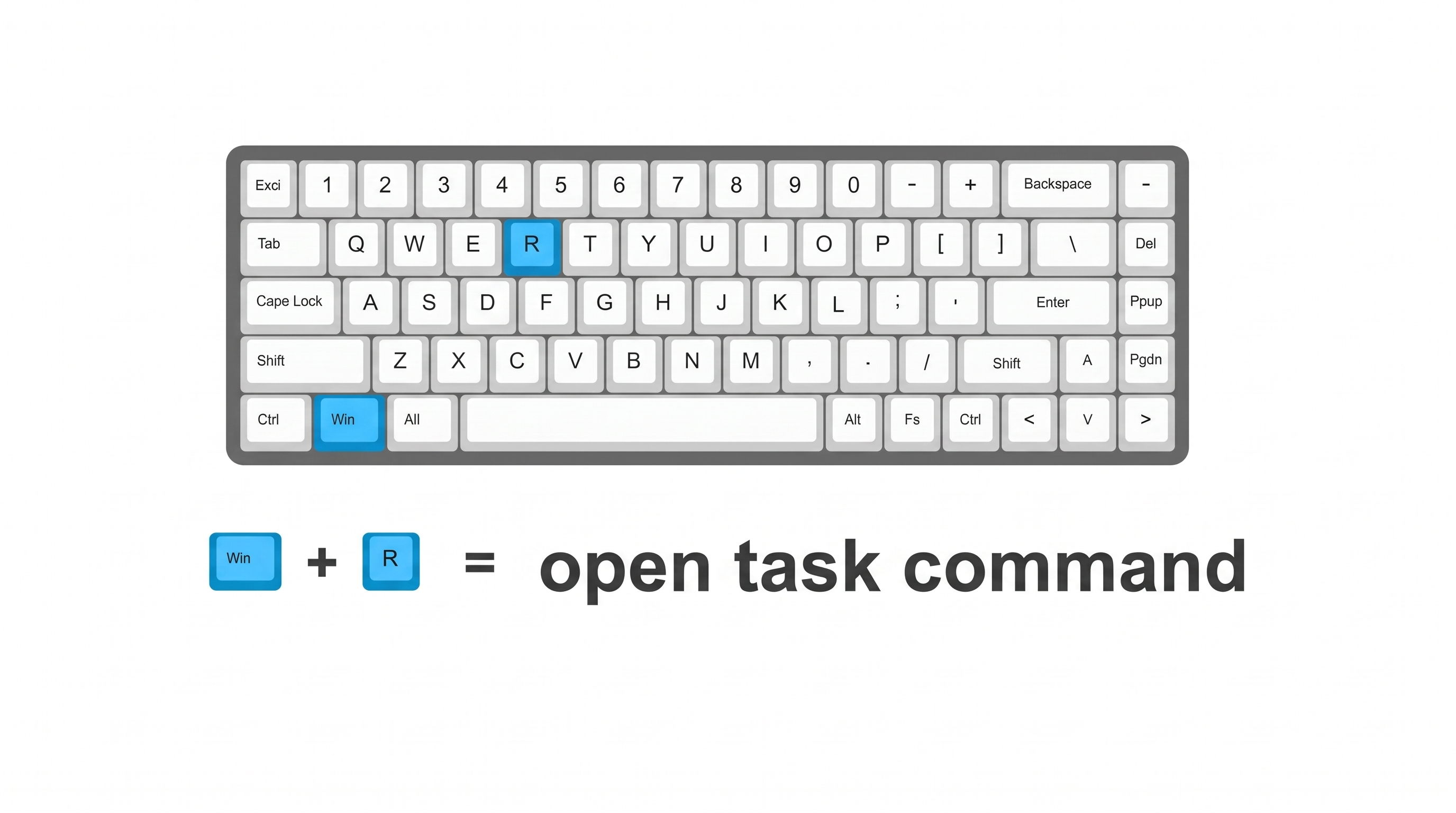
and type inside the task command cmd look like the pitcher below
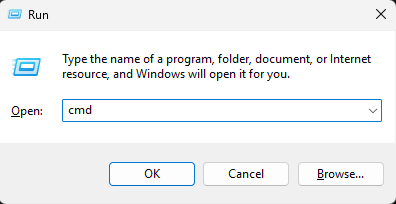
then Press enter.
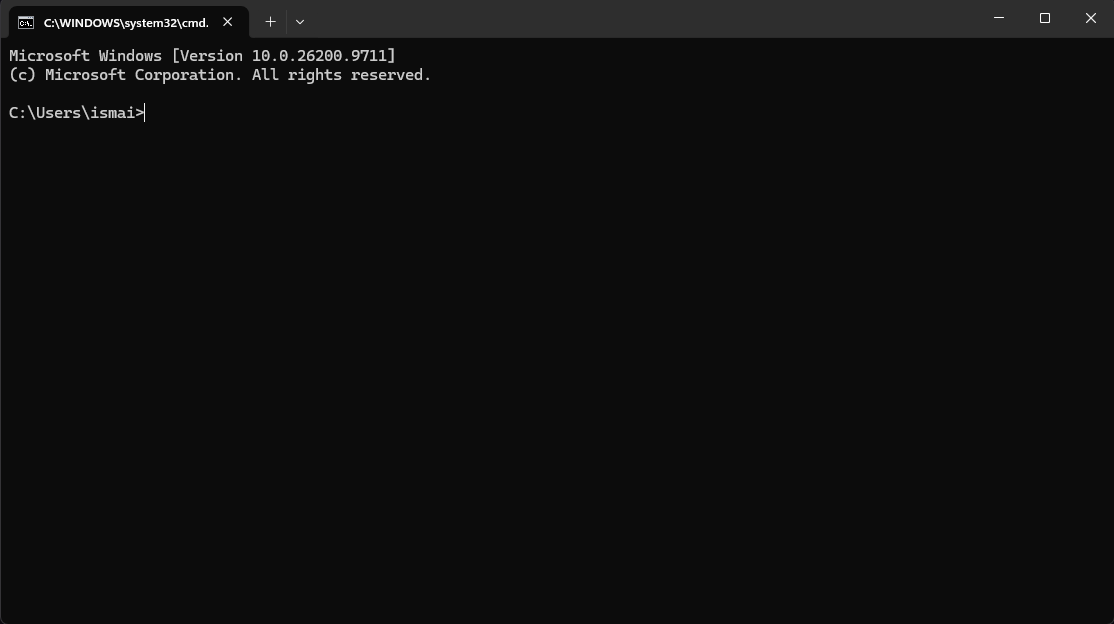
- anther options to see how can you open the cmd you can go to the path on you windows system to open the cmd
C:\Windows\system32\cmd.exe
We can run our commands, scripts, or other actions as needed.
Before using the command we need to know something: his name, getting help#
Sometimes you need to use the help command. I will explain why, but before answering the question, we need to know how to use the help command. help is a command that can help you know what the tool can do and how to use it. It gives you a manual for using it, and shows you what the tool can do and what its purpose is. But you will ask me some questions: Why did I use the help command to see the manual, when I already have the internet and I can search with it? So if you ask this question, this is a good question because sometimes you don't have access to the machine, or to Windows, or anything whatever, or you have a limited network. We are talking about when you have a job: in some companies you test some drivers, and with some drivers you can never use the network. You need to know the command because there are a lot of scenarios where you can't use the network. And this is why. It is a good skill: once you have it, you can work even when you don't have a network, unlike someone who is using only the internet. I don't say that the internet is bad, but it should be a second option. You need to have a plan B. It's not bad. You just need to know this because it is incredibly useful.
How to Get Help#
So we use help to get help let's see that in the picture Below
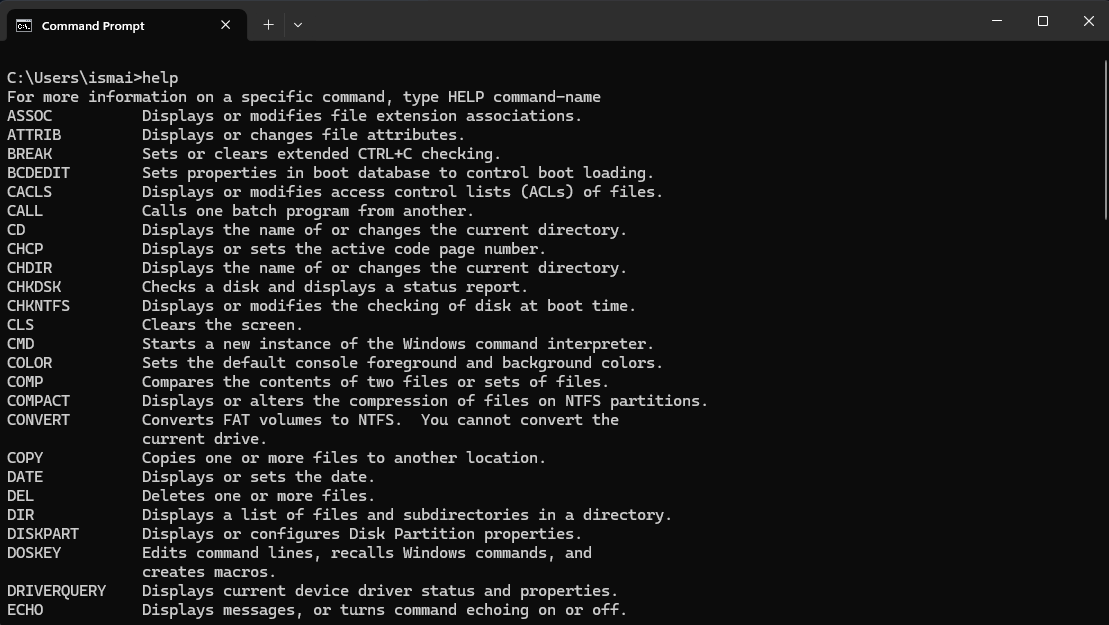
If you look at the picture, we have the name of the tool and the description for it. We can use help to see how the command can work and how to use it. We will learn in the next section how to use help to specify some command. This is useful for you when we search offline for something let's see how we can see the description for a specific tool.
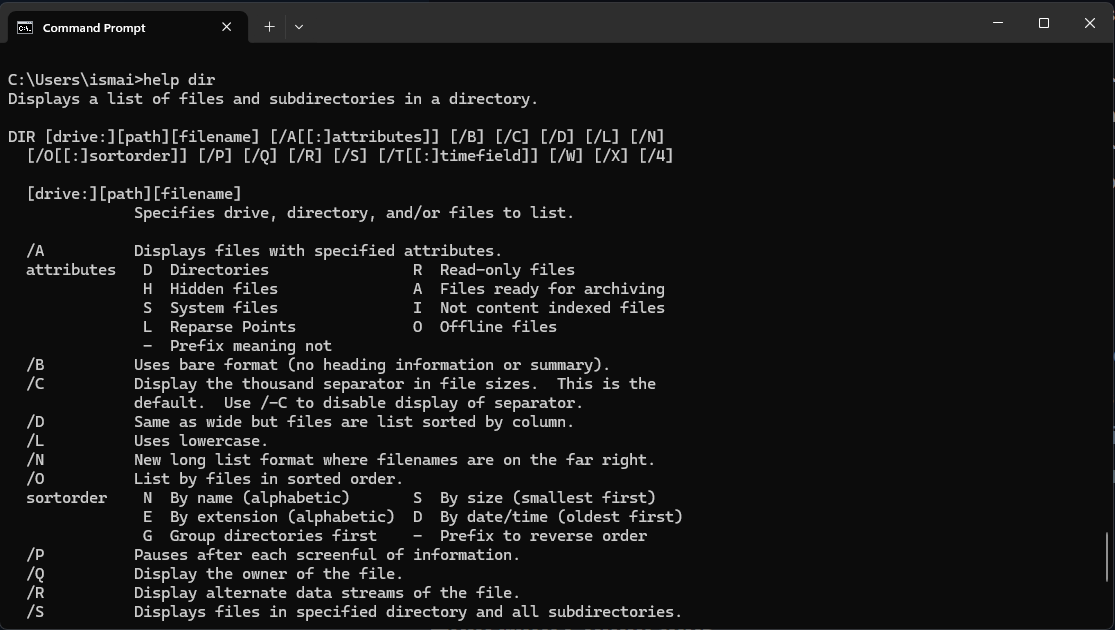
If you see at the top, I typed the command help dir. I told the tool help to show me the manual using the tool dir and it gave me a lot of information, like displaying a file with a specific attribute. It gave me a lot of information that can be used to know how can I use it, tool?
But sometimes we don't have an option to search for a tool using him because not all the tools are supported by him. Let's see, for example, in the picture below
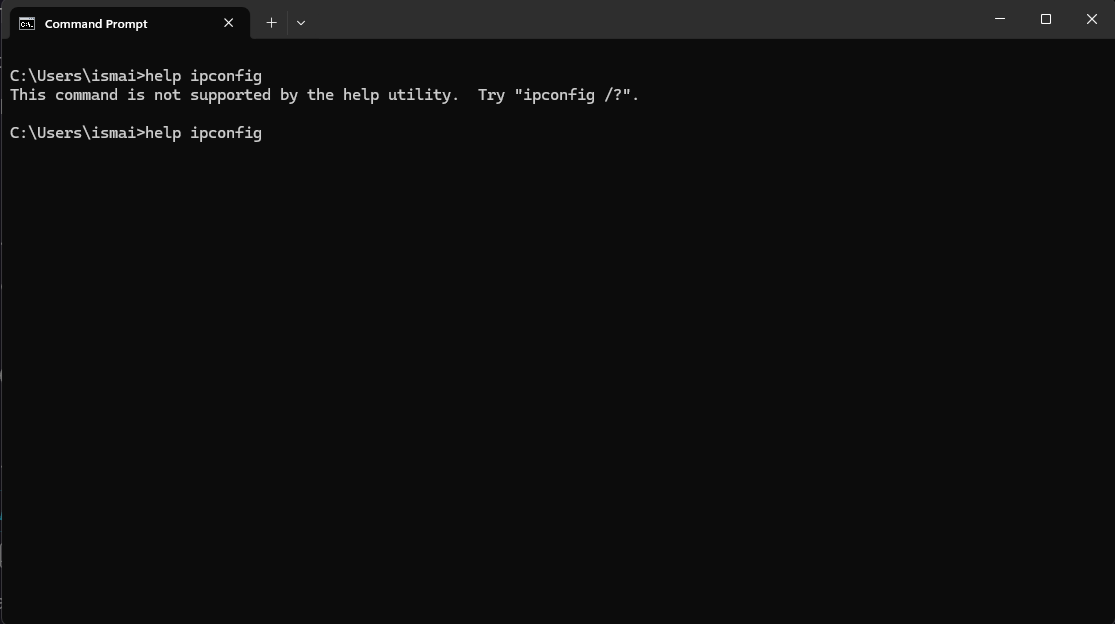
Sometimes we can't use the help option to retrieve the manual description , but if you see in the terminal, we have something: try if config/?' That can help you to see manual documentation if the options help doesn't work
You can check the resource online : Microsoft Documentation : that is official documentation from Microsoft. ss64 : That resource is very helpful for searching tools, including CMD and PowerShell Bash and more
Command cmd#
dir#
the first command we will learn in this section is dir there is a command that can list your files and directories. Look at the example below
C:\Users\trevocastles\OneDrive\Desktop\test>dir
 Volume in drive C has no label.
 Volume Serial Number is BA26-2403

 Directory of C:\Users\trevocastles\OneDrive\Desktop\test

11/14/2026  11:47 AM    <DIR>          .
11/14/2026  11:42 AM    <DIR>          ..
11/14/2026  11:47 AM                30 root.txt
11/14/2026  11:47 AM                26 TrevoCastles
11/14/2026  11:43 AM    <DIR>          user.txt
               2 File(s)             56 bytes
3 Dir(s) 143,536,857,088 bytes free- The current path Locate in
C:\Users\trevocastles\OneDrive\Desktop\test>dir - The command we have issued (
dir) - The results of the command (
output below the line the command was issued on)
cls#
The second command is very helpful once you want a clear screen with legacy output you can use cls
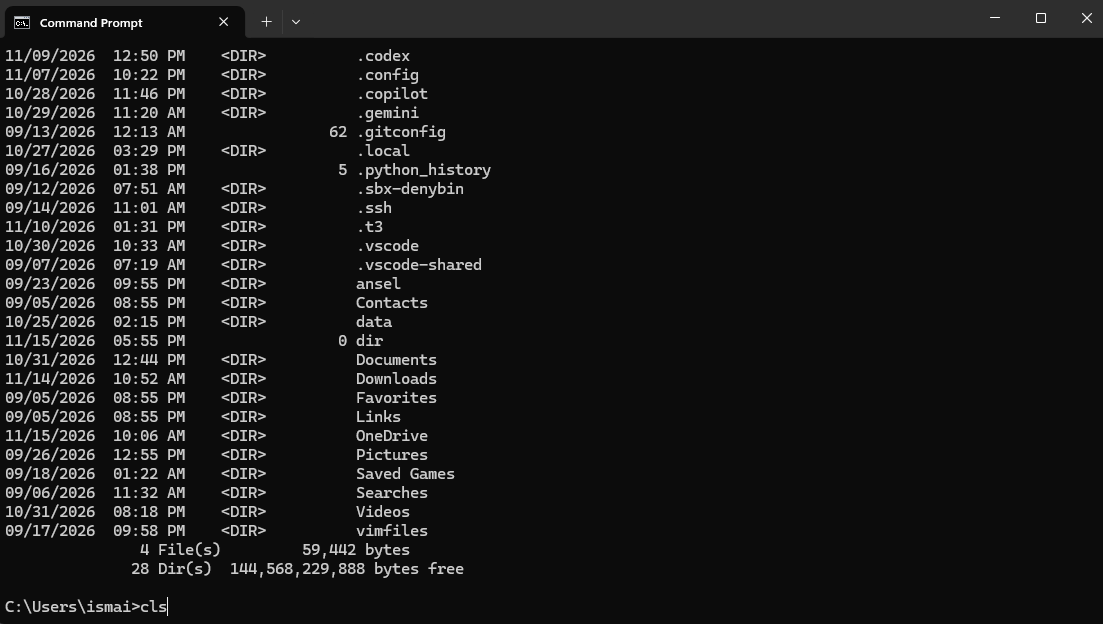
once you use cls the screen return clear
History#
Once you run a command in the Windows CMD, you can easily retrieve your previous command using the command history. Feature there are a few ways to retrieve the history. You can use the up and down arrow keys: Press the up arrow to retrieved the previous command. And down to move forward until you find the command you want and another option is
doskey /history : Run the command doskey /history To display a full list of all commands executed in your current session
f7 : key press F7 to open an interactive pop up menu of your command history.
1.0 - For Example
|Key/Command|Description| |:-:|---| |doskey /history|doskey /history will print the session's command history to the terminal or output it to a file when specified.| |page up|Places the first command in our session history to the prompt.| |page down|Places the last command in history to the prompt.| |⇧|Allows us to scroll up through our command history to view previously run commands.| |⇩|Allows us to scroll down to our most recent commands run.| |⇨|Types the previous command to prompt one character at a time.| |⇦|N/A| |F3|Will retype the entire previous entry to our prompt.| |F5|Pressing F5 multiple times will allow you to cycle through previous commands.| |F7|Opens an interactive list of previous commands.| 1.1 - For Example
C:\Users\trevocastles>cls
▴  2: cls
▒  3: help ipconfig
▒  4: cla
▒  5: cli
▒  6: cle
▒  7: cls
▒  8: ipconfig
▒  9: cls
▒ 10: cd \OneDrive\Desktop\test>dir
▒ 11: cd \OneDrive\Desktop\test
▒ 12: cd \OneDrive\Desktop\
▒ 13: ^Lll
█ 14: dir
▾▸15: cls
cd#
cd is change Directory you can use cd These commands will move us to whatever directory we specify after the command. for example if want go to some director you can use cd C:\name-file but, before learning the command cd we need to know what is different between absolute path and relative path.
Absolute Path#
C:\trevocastles> cd C:\Users\trevocastles\Pictures

C:\Users\trevocastles\Pictures>
where if you see we use the Absolute path to moving direct to the folder Pictures so that proof us we start with C, searching for what folder we need move into it for example :
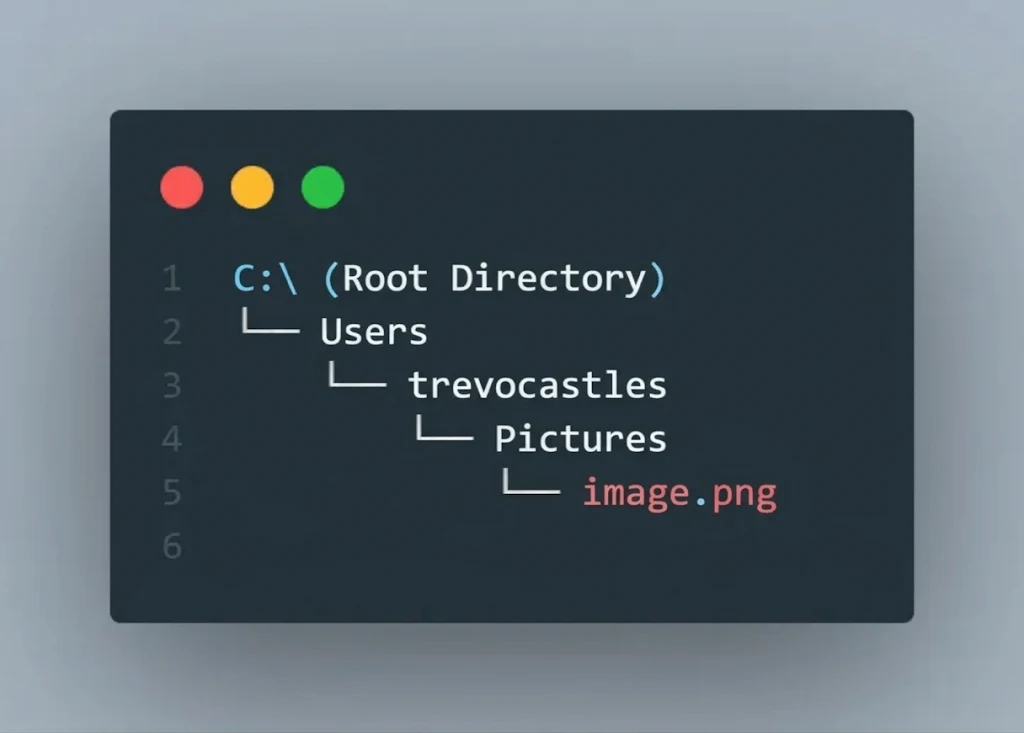
Since you changed the diagram to Windows, C:\home\user is no longer in your picture. It should be C:\Users\trevocastles\Pictures to match the new image. you can not use direct Pictures because you need first to be in the user if want use only cd Pictures and the what we will learning he have name Relative
Relative Path#
Relative path is a simple and easily , look at the picture up Let's say you are inside trevocastles if want move into in the Pictures you Already inside trevocastles you can use only cd Pictures that sit but if you are in the C:\ important you the relative path cd Users\trevocastles\Pictures once you want back on the trevocastles you need use cd .. what is the .. let's explain that imagine you are inside the folder pictures the shortcut of trevocastles is .. the system know the is father of the dirctory the picture folder the file has a shortcut .. if you type cd .. system move you to the trevocastles father folder and the same idea in the Users has sortcut .. anther example if are in the C:\Users\trevocastles\Pictures and you dont want use cd .. cd .. cd .. you can only use cd ..\..\..\ that can move you yo C: direct something else you if you inside some folder like trevocastles the folder have sortcut . i will explain that later and where can help as
Why does the path begin with C:\ So that is a root directory for Windows.
Why exactly C? Windows is commonly installed on the C: drive. Other drives and partitions can have different letters, such as D: or E ,
C:\trevocastles> cd
C:\trevocastles
Exploring the File System#
Now we need to take a look at the file system. And the best way to see all of the file system is tree. That can show your alpha system with a pretty look.
C:\tvo\trevocastles\> tree
Folder PATH listing
Volume serial number is 26E7-9EE4
C:. ├───3D Objects ├───Contacts
├───Desktop
├───Documents
├───Downloads
├───Favorites
│ └───Links
├───Links
├───Music
├───OneDrive
├───Pictures
│ ├───Camera Roll
│ └───Saved Pictures
├───Saved Games
├───Searches
└───Videos
└───Captures- you can see all file system with tree that can give you a full idea what folder i have and very useful once you want move on the file system
If you want to see what we have in the folder and how can we cam see inside the folder, we need use some flag because sometimes the folder there has users' names, passwords, and sensitive credentials more and more so important to see what the folder there has
tree /F
C:\tvo\trevocastles\> tree /F

Folder PATH listing
Volume serial number is 26E7-9EE4
C:.
├───3D Objects
├───Contacts
├───Desktop
│       passwords.txt.txt
│       Project plans.txt
│       secrets.txt
│
├───Documents
├───Downloads
├───Favorites
│   │   Bing.URL
│   │
│   └───Links
├───Links
│       Desktop.lnk
│       Downloads.lnk
│
├───Music
├───OneDrive
├───Pictures
│   ├───Camera Roll
│   └───Saved Pictures
├───Saved Games
├───Searches
│       winrt--{S-1-5-21-1588464669-3682530959-1994202445-1000}-.searchconnector-ms
│
└───Videos
    └───Captures

    <SNIP>
That can be helpful for you to see all the files inside the directory. You can see the sensitive files, a lot of files. You can take a structure. Once the command gives you a lot of files and folders and it doesn't want to finish, you need to just press Ctrl+C. That can stop the process for the session.
So now we have some skills to moving on the system you can open the folders and list the files. You know how you can go back to the folders. You know what the difference is between absolute path and Relative path and that is very helpful for beginners now let's take a minute to discuss folder enumeration. How you can abuse some directory to take some information or persistence. i will explain this in the next sections
| Name: | Location: | Description: |
|---|---|---|
| %SYSTEMROOT%\Temp | C:\Windows\Temp | Contains temporary system files. Access depends on configured permissions on the system. All users, regardless of authority, are provided full read, write, and execute permissions in this directory. Useful for dropping files as a low-privilege user on the system. |
| %TEMP% | C:\Users\<user>\AppData\Local\Temp | Contains temporary files associated with the current environment. accessible only to the user account that it is attached to. Provides full ownership to the user that owns this folder. Useful when the attacker gains control of a local/domain joined user account. |
| %PUBLIC% | C:\Users\Public | Publicly accessible directory allowing any interactive logon account full access to read, write, modify, execute, etc., files and subfolders within the directory. Alternative to the global Windows Temp Directory as it's less likely to be monitored for suspicious activity. |
| %ProgramFiles% | C:\Program Files | folder containing all 64-bit applications installed on the system. Useful for seeing what kind of applications are installed on the target system. |
| %ProgramFiles(x86)% | C:\Program Files (x86) | Folder containing all 32-bit applications installed on the system. Useful for seeing what kind of applications are installed on the target system. |
If you see the folder, that can maybe not be useful for you but it is useful once you want enumeration but the section is not for Windows enumeration. The section gives you only how to learn CMD and PowerShell I will write a blog for enumeration Windows but now the section is only on how to use the terminal on Windows.
Working with Directories and Files - CMD#
Now we have the knowledge to move on to the file system via the command line. Master art of file and directory I will cover. Some technique but keep in mind this is a lot of technique. You can use it, there other away handle file and directory?
Directories#
As we see in the previous section we can use cd command to change directory. And you can list directories and files with the command dir and you can use a new look with command tree now we will learn how to make a directory or create a directory.
mkdir & md#
Using MD
To create a directory is a simple process we will use first md is make directory directory he can make a directory
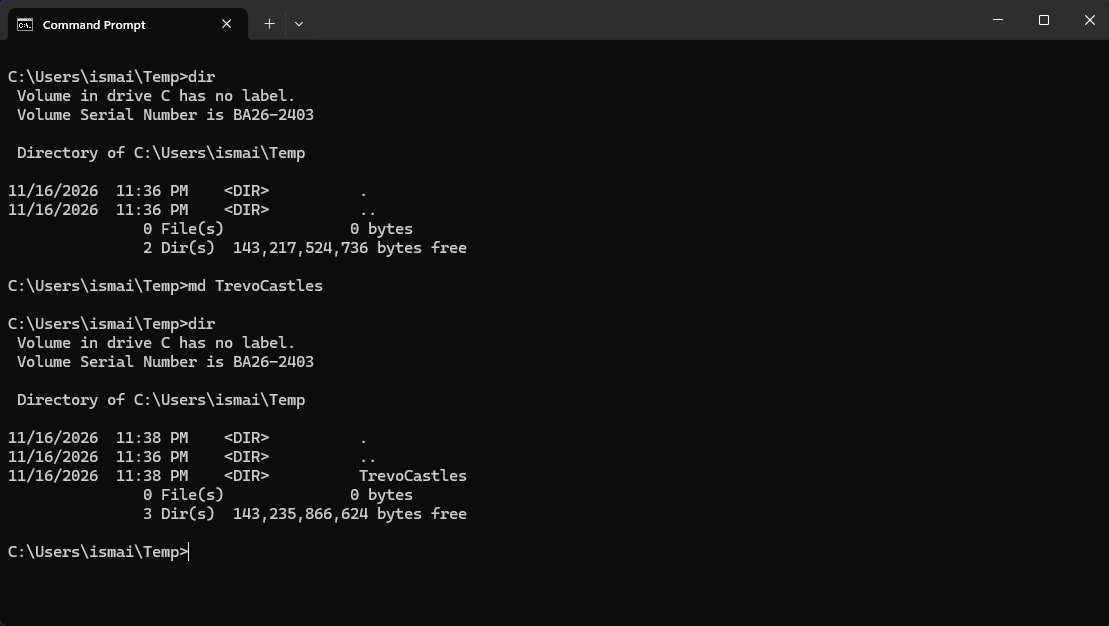
Now let's move to the command mkdir. mkdir has the same mission: making a directory.
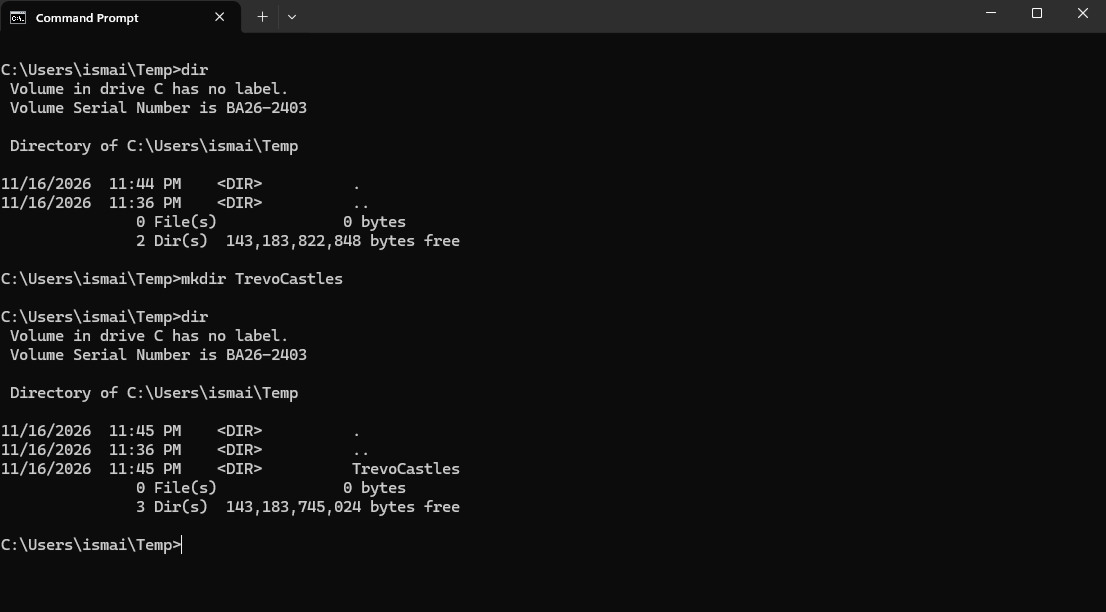
There is no difference between the mkdir command and the md command. There are two options that have the same mission: creating a directory.
Delete Directories#
Deleting a directory is an easy process. We can use two commands: rd and rmdir the two commands have only a mission to delete the directories.
RD & RMDIR#
Let's start with the first command: rd.
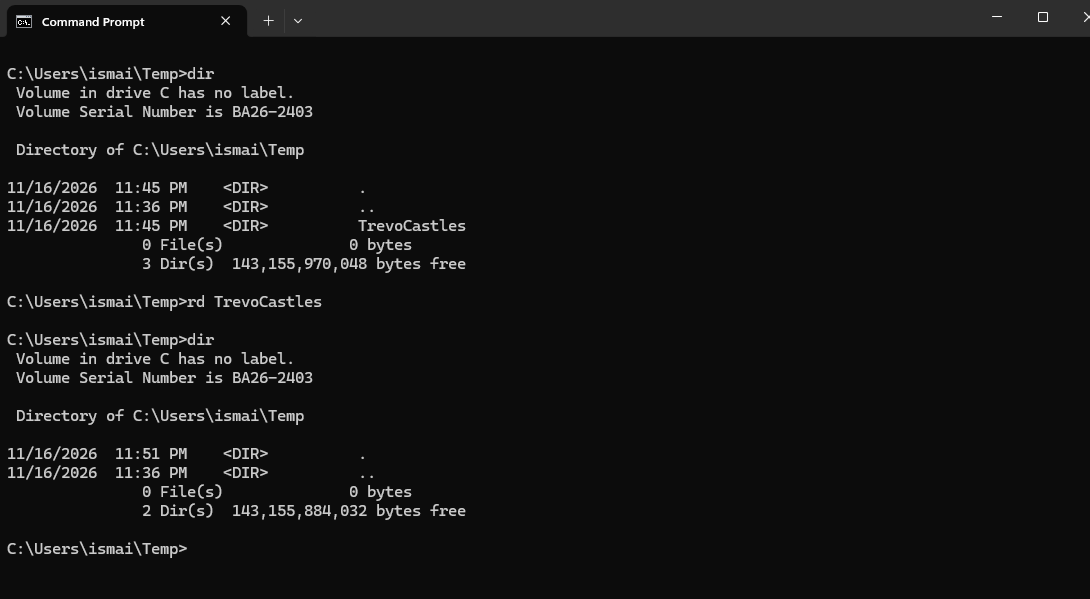
With successfully deleting the directory TrevoCastles we will learn some flags inside the command /S
RD /S#
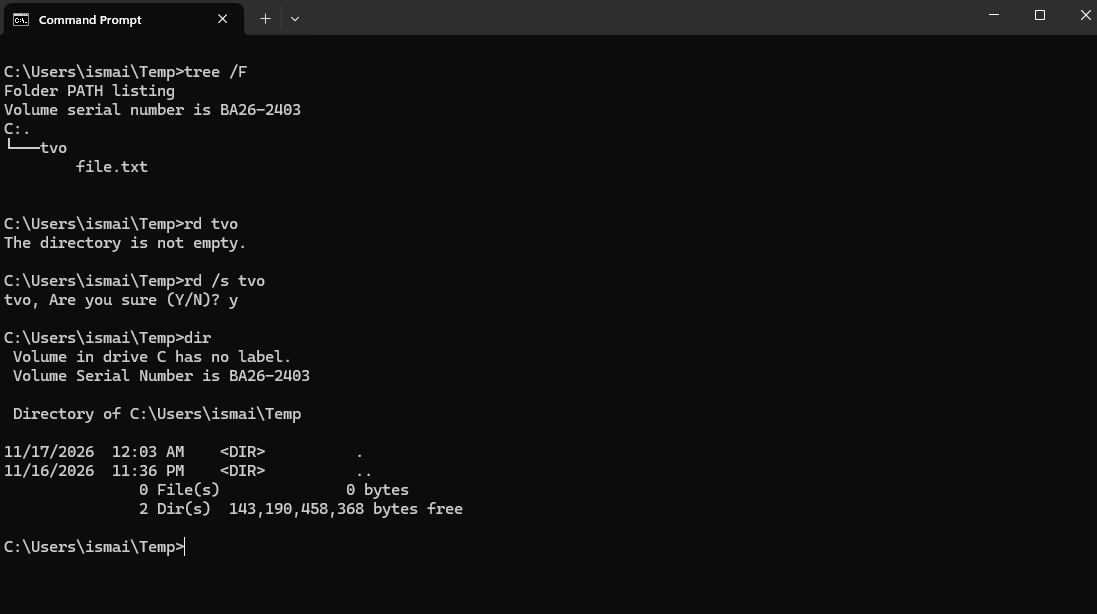
Why do we use RD /S? Sometimes we have a directory. Inside the directory we have content. For example we have files: .txt, .python, whatever. Once you want to delete the directory, CMD gives you an error: the directory is not empty.
For example look at the picture. We have a folder named table. Inside table we have a file. When we want to remove the folder or delete the folder
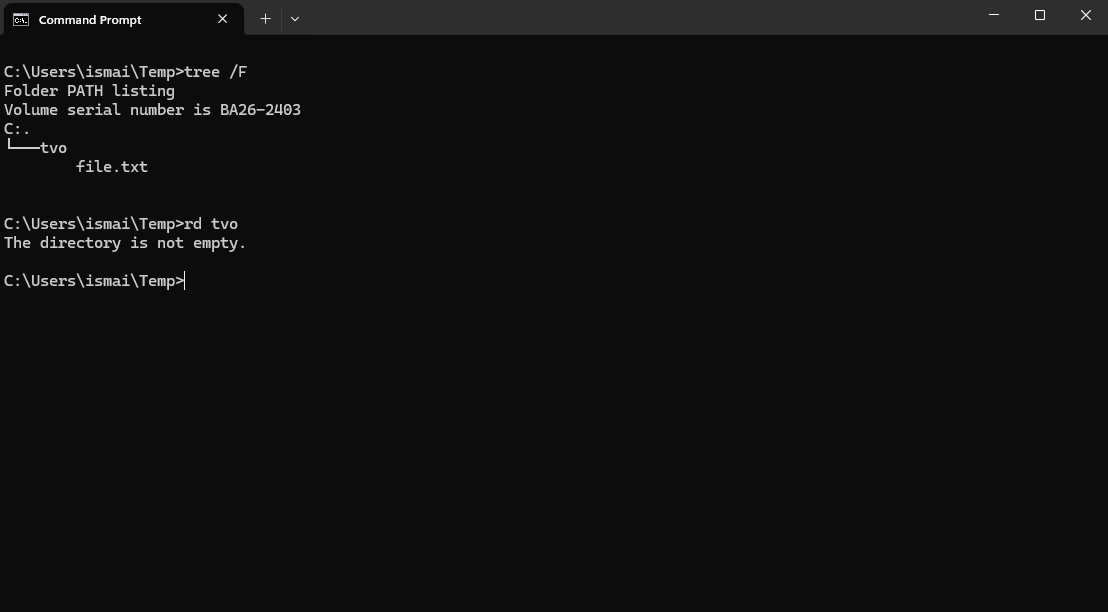
In this scenario we will use rd /S to delete the directory and all the content inside the directory
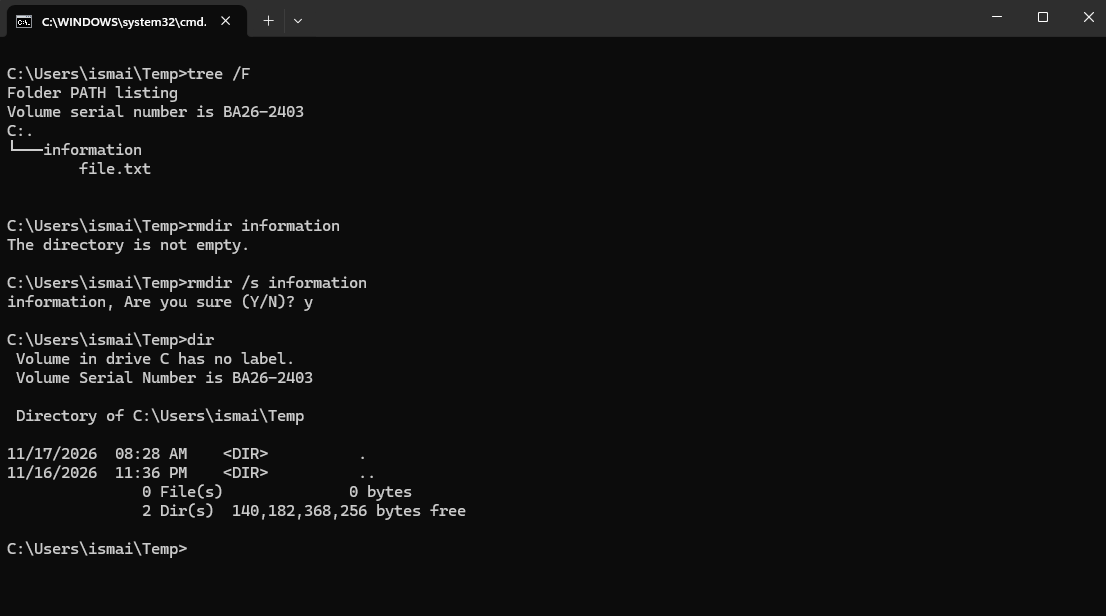
The same idea in the command rmdir let's take a look.
move & xcopy & ROBOCOPY#
We will learn what is different between move, xxcopy, and robocory let's start using the move command.
move#
You can use move to move a folder or file from source to destination
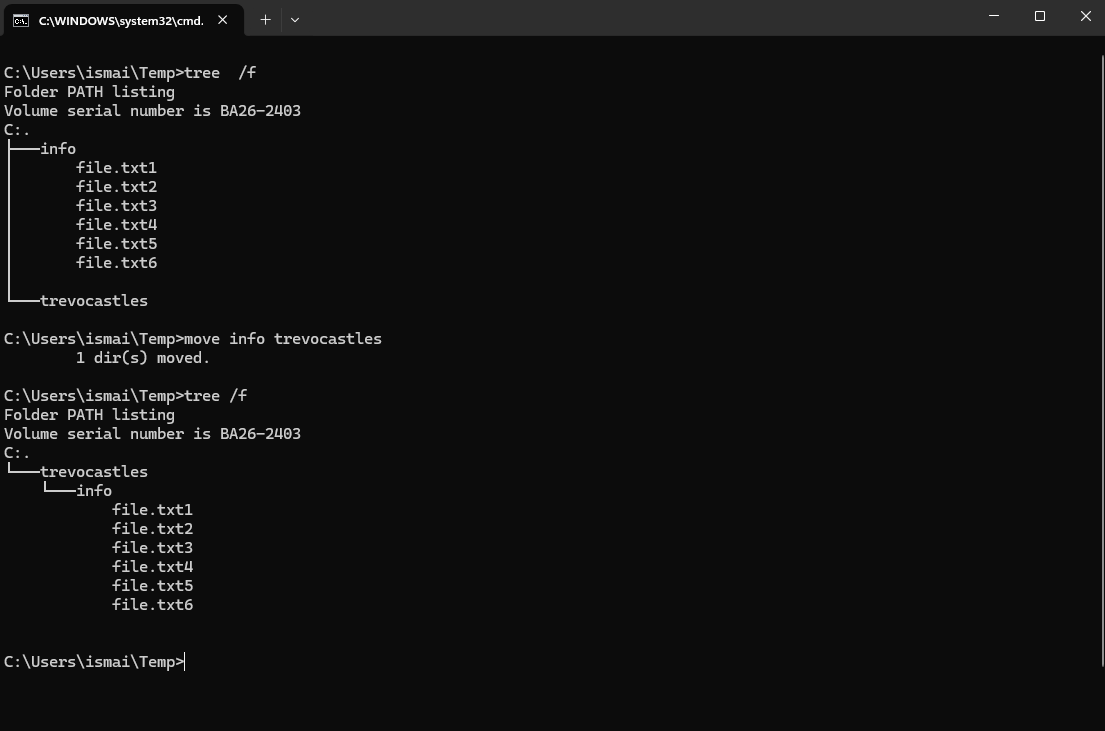
If you see here the first command we use tree to see all files, directories, and subfiles. In the example we want move info directory he has 6 file to TrevoCastles directory:
move source-path Destination-path move info trevocastles- now let's move on the xcopy command
xcopy#
Xcopy is a command-line tool used to copy files and directories, including their subdirectories, from a source to a destination. and you can put it in whatever directory you want
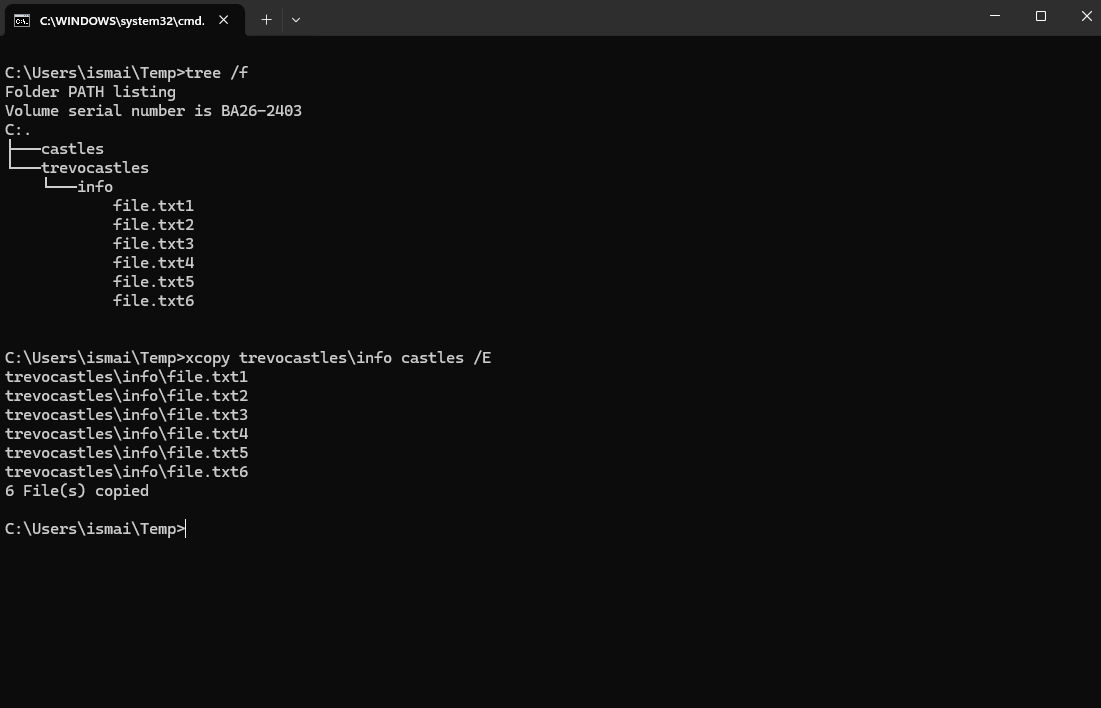
If you see an example we have three directories: we have castles, trevo castle, and info. I want to copy the directory info and the subfiles for info to the folder castles
xcopy source-path destination-path /Excopy trevocastles\info castles /E/E the is a flag. they have a mission to copy all subdirectory like directory inside directory . This is why we use /E let's see example
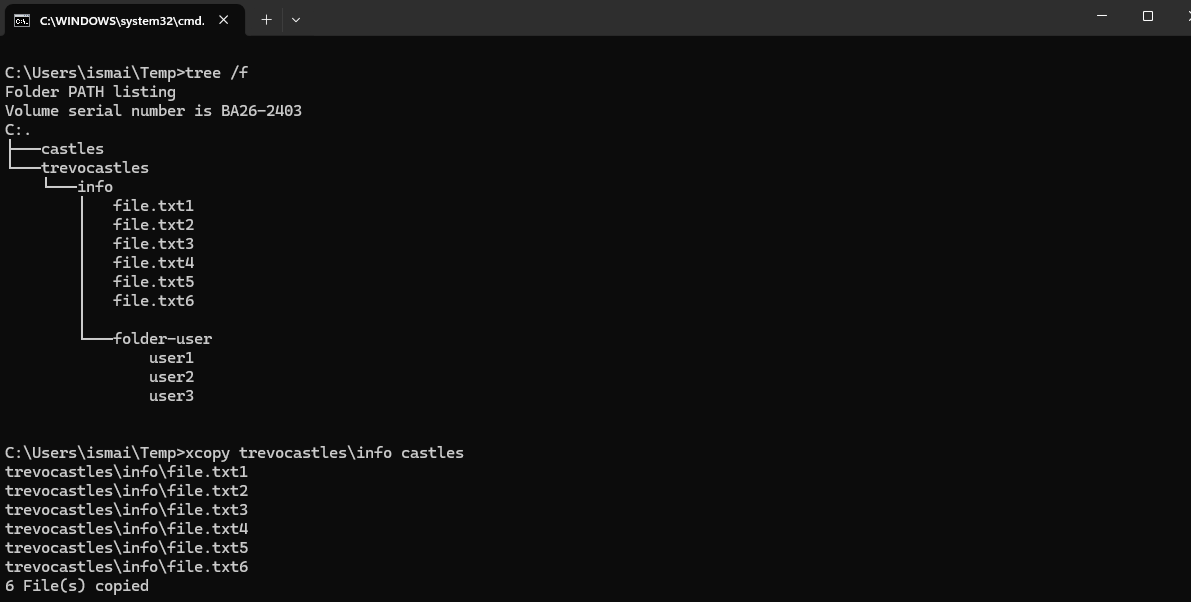
You see here we have a destination directory that is crestal and we want to copy all files and directories from info. Once we use xcopy to copy there give us only file not subdirectoey
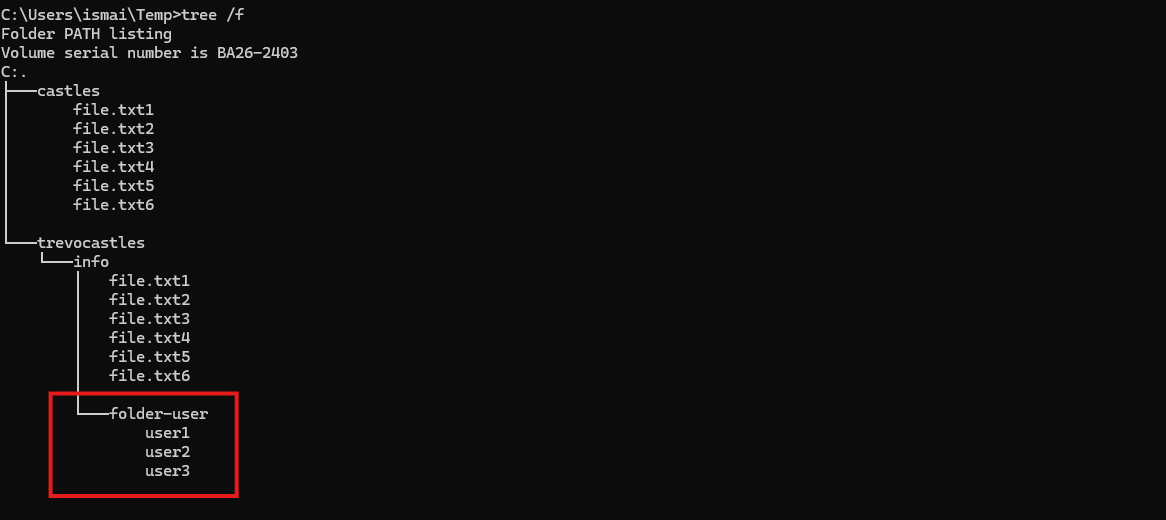
If you see, once I copy the folder, all files are successfully copied but the folder doesn't copy. Now let's use extension /E
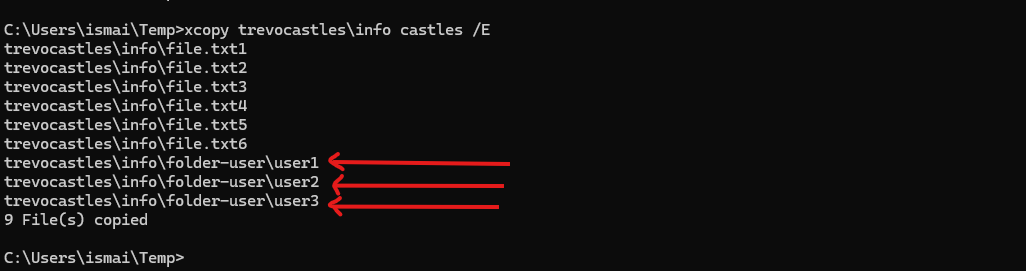
The xcopy has successfully copied files and subdirectories.
Now let's move to ROBOCOPY
ROBOCOPY#
Robocopy is a strong tool for copy. I will cover what is different between Robocopy, xcopy, and move. And I will explain the robocopy with some flags to understand because the tool is very useful when we manage a big directory now let's start
let's start with normal copy directory
robocopy source-path destination-pathC:\Users\trevocastles\Temp>robocopy trevocastles\info castles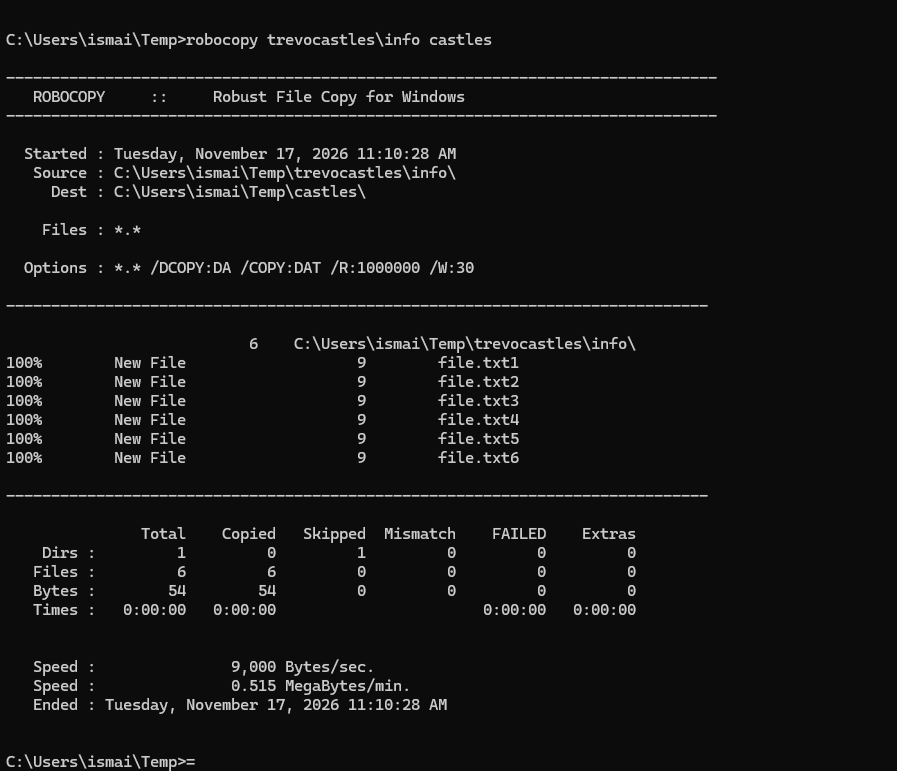
let's explain the output let's start on the first
-------------------------------------------------------------------------------
   ROBOCOPY     ::     Robust File Copy for Windows
-------------------------------------------------------------------------------

  Started : Tuesday, November 17, 2026 11:10:28 AM
   Source : C:\Users\trevocastles\Temp\trevocastles\info\
     Dest : C:\Users\trevocastles\Temp\castles\

    Files : *.*

  Options : *.* /DCOPY:DA /COPY:DAT /R:1000000 /W:30

------------------------------------------------------------------------------
that is infraomtion about the command let's take a look
Started : that is command run on Tuesday, November 17, 2026 11:10:28 AM
Source : that is source where the locate file
Dest : where do want the file go
                           6    C:\Users\trevocastles\Temp\trevocastles\info\
100%        New File                   9        file.txt1
100%        New File                   9        file.txt2
100%        New File                   9        file.txt3
100%        New File                   9        file.txt4
100%        New File                   9        file.txt5
100%        New File                   9        file.txt6
The output confirms that the files have been successfully copied to the destination.
               Total    Copied   Skipped  Mismatch    FAILED    Extras
    Dirs :         1         0         1         0         0         0
   Files :         6         6         0         0         0         0
   Bytes :        54        54         0         0         0         0
   Times :   0:00:00   0:00:00                       0:00:00   0:00:00


   Speed :               9,000 Bytes/sec.
   Speed :               0.515 MegaBytes/min.
   Ended : Tuesday, November 17, 2026 11:10:28 AM
in the last output give us information about how much file has been copy and directory and some information about the how much time take to copy the all file and the process finch if you see Robocopy is designed for robust directory copying and synchronization. It supports advanced options such as retries, restartable transfers, and preserving file metadata. so the robocopy is a powerful once you want copy a big directory
Important information `nota : the tool is not copy only the file on directory is more complexe there take Attributes Metadata Permissions if use flag /COPYALL by default use /COPY:DAT Data + Attributes + Timestamps. for example:
passwords.txt

Content: admin123
Hidden: Yes
Read-only: Yes
Modified: 10/10/2026
Permissions: Administrator| Feature | What does it mean? |
|---|---|
| Data | Content |
| Attributes | Hidden و Read-only |
| Timestamps | Last edit date |
| ACLs | Access Control Lists |
| Ownership | Who is the owner |
- now let's take a look on the flag to take as much information about the tool
ROBOCOPY C:\Users\trevocastles\Temp>robocopy trevocastles\info castles /EThe /E flag copies all subdirectories, including empty directories.
Warning : the flag can delete your file if you don't know how to use it. ⚠
ROBOCOPY C:\Users\trevocastles\Temp>robocopy trevocastles\info castles /MIRSo the flag: The purpose of /MIR is to make the destination directory match the source directory. It can delete files from the destination that do not exist in the source. I will explain this with the example below.
SOURCE:
file1.txt
file2.txt

DESTINATION:
file1.txt
file2.txt
file3.txt
DESTINATION:
file1.txt
file2.txtIf you see in the example, once we use /MIR, the deleted file file3.txt... The mission of the /MIR is to make it look like the folders between source and destination.
ROBOCOPY C:\Users\trevocastles\Temp>robocopy trevocastles\info castles /LThe flag /l basically shows you the process and he doesn't execute anything. It only shows you what we will do once you use the flags.
More#
Command more is useful once you want to read a file line by line: an option to read the file by pressing Enter or Space. For example
more file-name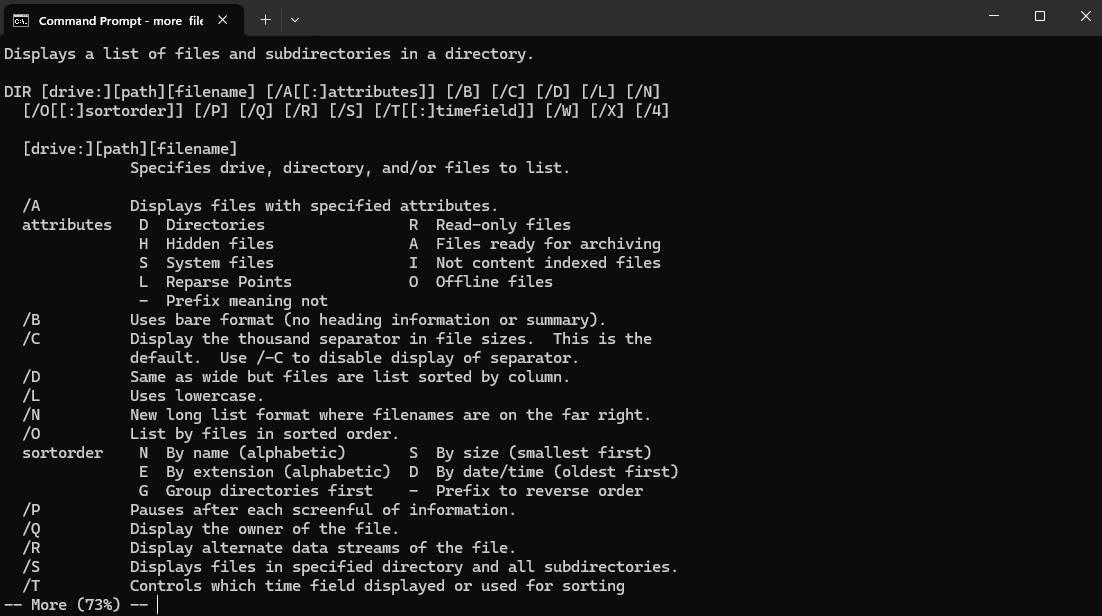
You can use Enter or Space to read more of the file.
More /S#
That option gives you a short text because once you use only Command More, it gives you a lot of space. The /S switch reduces multiple consecutive blank lines to a single blank line, making the output easier to read. That is useful once you want to read file with anything.
Send command to "|"#
Let's take a look at a pipeline. A pipeline is an option when you want to manage output for example
help dir | more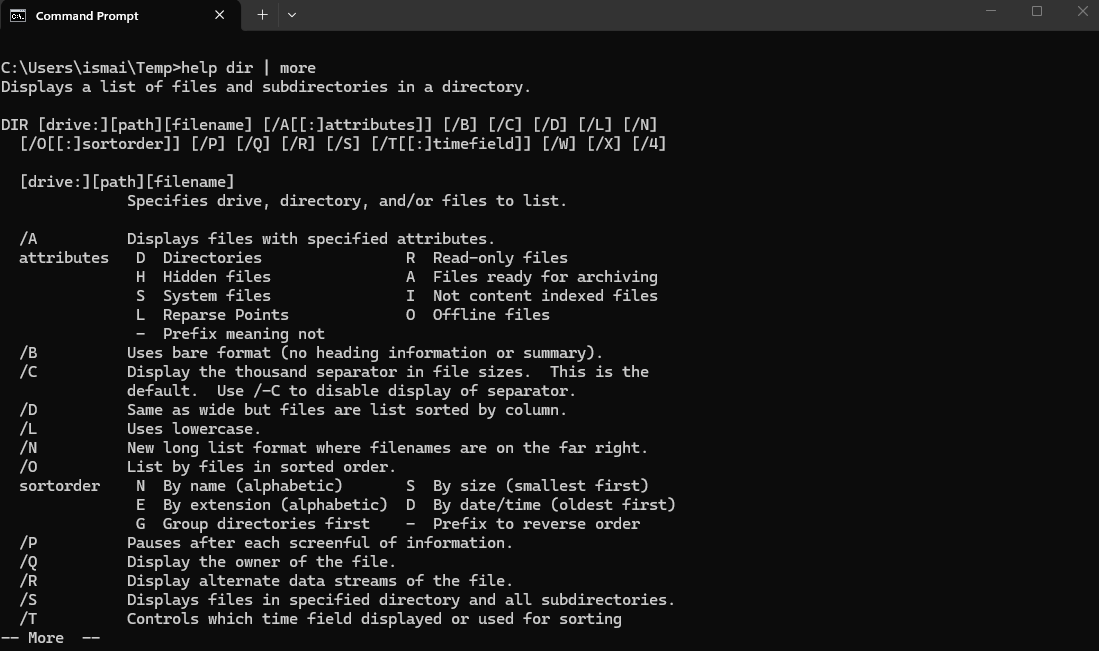
As you see here when you use help directory, it gives you a lot of output but by using pip more it gives you an option to use Enter or Space to see the other line.
I will talk more about pipeline in the next section.
Type#
The type command displays the contents of a text file. It is useful when you want to read a file directly from CMD.
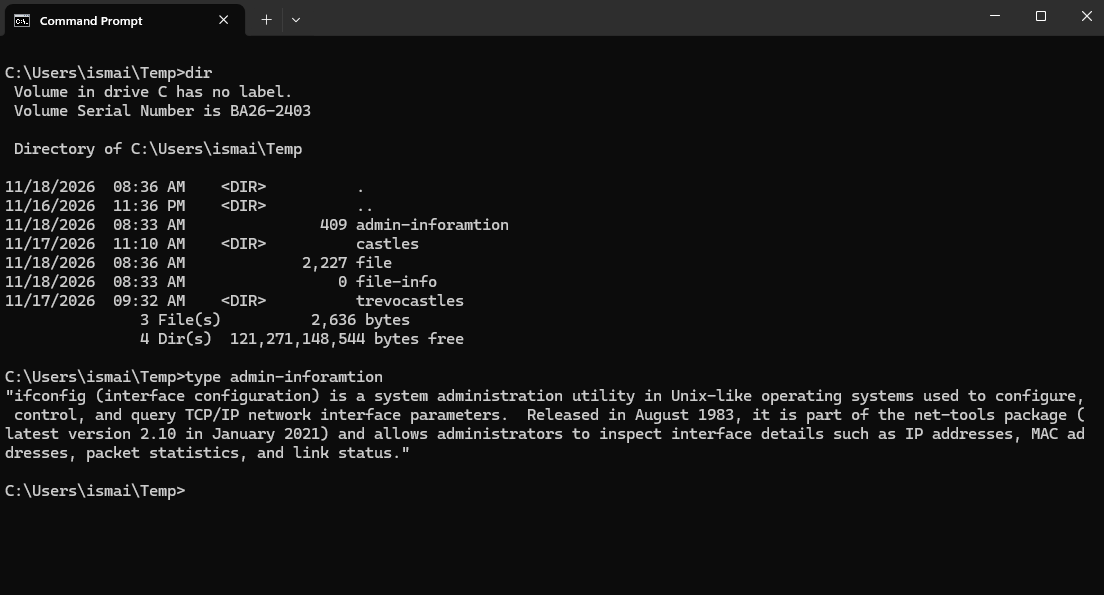
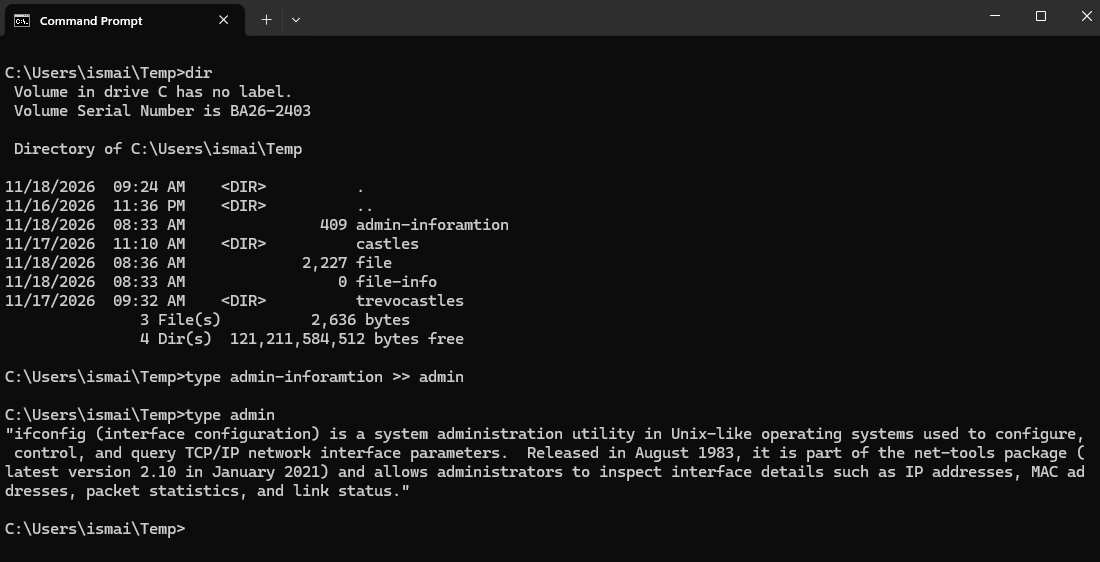
Redirect With Type#
if you see here I have another option. It looks more like copying files. We will redirect the files like in the example
Create And Modify A File#
We have a lot of commands that can make or modify a file. We will learn a lot of tools. And that can be helpful once we have a lot of knowledge about how to modify and create a file. Let's start with using echo
echo "hey this is trevocastles" > file.txt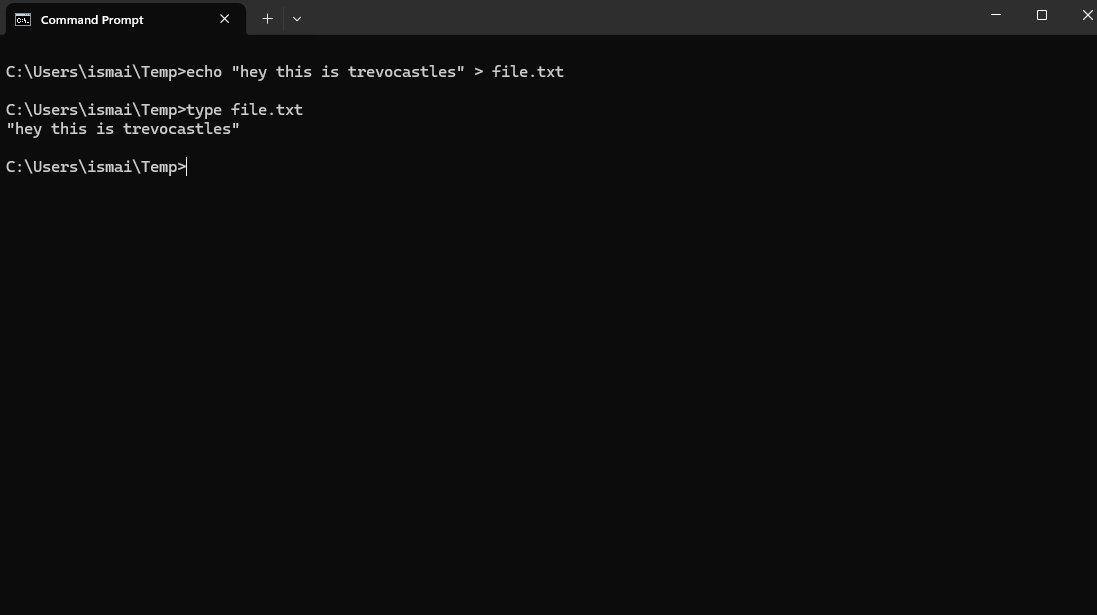
And we can use fsutil to create a file let's see the example.
fsutil file createNew for-sure.txt 222| Part | Explanation |
|---|---|
fsutil | A Windows command-line utility used to manage file system operations. |
file | Specifies that we want to perform an operation on a file. |
createnew | Creates a new file. |
for-sure.txt | The name of the file we want to create. |
222 | Specifies the size of the file in bytes. |
Ren#
ren is a command line that can rename the files For example
ren admin userC:\Users\trevocastles\Temp>dir
Volume in drive C has no label.
Volume Serial Number is BA26-2403
Directory of C:\Users\trevocastles\Temp
11/18/2026 10:46 AM <DIR> .
11/16/2026 11:36 PM <DIR> ..
11/18/2026 09:25 AM 409 admin
11/18/2026 08:33 AM 409 admin-inforamtion
11/17/2026 11:10 AM <DIR> castles
11/18/2026 08:33 AM 0 file-info
11/18/2026 10:08 AM 29 file.txt
11/18/2026 10:19 AM 222 filefile
11/17/2026 09:32 AM <DIR> trevocastles
5 File(s) 1,069 bytes
4 Dir(s) 129,347,891,200 bytes free
C:\Users\trevocastles\Temp>ren admin user
C:\Users\trevocastles\Temp>dir
Volume in drive C has no label.
Volume Serial Number is BA26-2403
Directory of C:\Users\trevocastles\Temp
11/18/2026 10:47 AM <DIR> .
11/16/2026 11:36 PM <DIR> ..
11/18/2026 08:33 AM 409 admin-inforamtion
11/17/2026 11:10 AM <DIR> castles
11/18/2026 08:33 AM 0 file-info
11/18/2026 10:08 AM 29 file.txt
11/18/2026 10:19 AM 222 filefile
11/17/2026 09:32 AM <DIR> trevocastles
11/18/2026 09:25 AM 409 user
5 File(s) 1,069 bytes
4 Dir(s) 129,347,825,664 bytes freeInput / Output#
We already see the | and >> , > ,& that can manage output and input for files and you will learn how you can send input to output. I will explain everything about this.
let explain > >>#
So let's start with >
C:\Users\trevocastles\Temp>dir
 Volume in drive C has no label.
 Volume Serial Number is BA26-2403

 Directory of C:\Users\trevocastles\Temp

11/18/2026  10:47 AM    <DIR>          .
11/16/2026  11:36 PM    <DIR>          ..
11/18/2026  08:33 AM               409 admin-inforamtion
11/17/2026  11:10 AM    <DIR>          castles
11/18/2026  08:33 AM                 0 file-info
11/18/2026  10:08 AM                29 file.txt
11/18/2026  10:19 AM               222 filefile
11/17/2026  09:32 AM    <DIR>          trevocastles
11/18/2026  09:25 AM               409 user
               5 File(s)          1,069 bytes
               4 Dir(s)  131,907,686,400 bytes free

C:\Users\trevocastles\Temp>help dir > help-dir.txt

C:\Users\trevocastles\Temp>dir
 Volume in drive C has no label.
 Volume Serial Number is BA26-2403

 Directory of C:\Users\trevocastles\Temp

11/18/2026  02:12 PM    <DIR>          .
11/16/2026  11:36 PM    <DIR>          ..
11/18/2026  08:33 AM               409 admin-inforamtion
11/17/2026  11:10 AM    <DIR>          castles
11/18/2026  08:33 AM                 0 file-info
11/18/2026  10:08 AM                29 file.txt
11/18/2026  10:19 AM               222 filefile
11/18/2026  02:12 PM             2,227 help-dir.txt
11/17/2026  09:32 AM    <DIR>          trevocastles
11/18/2026  09:25 AM               409 user
               6 File(s)          3,296 bytes
               4 Dir(s)  131,900,760,064 bytes free

C:\Users\trevocastles\Temp>type help-dir.txt
Displays a list of files and subdirectories in a directory.

DIR [drive:][path][filename] [/A[[:]attributes]] [/B] [/C] [/D] [/L] [/N]
  [/O[[:]sortorder]] [/P] [/Q] [/R] [/S] [/T[[:]timefield]] [/W] [/X] [/4]

  [drive:][path][filename]
              Specifies drive, directory, and/or files to list.

  /A          Displays files with specified attributes.
  attributes   D  Directories                R  Read-only files
               H  Hidden files               A  Files ready for archiving
               S  System files               I  Not content indexed files
               L  Reparse Points             O  Offline files
               -  Prefix meaning not
  /B          Uses bare format (no heading information or summary).
  /C          Display the thousand separator in file sizes.  This is the
              default.  Use /-C to disable display of separator.
  /D          Same as wide but files are list sorted by column.
  /L          Uses lowercase.
  /N          New long list format where filenames are on the far right.
  /O          List by files in sorted order.
  sortorder    N  By name (alphabetic)       S  By size (smallest first)
               E  By extension (alphabetic)  D  By date/time (oldest first)
               G  Group directories first    -  Prefix to reverse order
  /P          Pauses after each screenful of information.
  /Q          Display the owner of the file.
  /R          Display alternate data streams of the file.
  /S          Displays files in specified directory and all subdirectories.
  /T          Controls which time field displayed or used for sorting
  timefield   C  Creation
              A  Last Access
              W  Last Written
  /W          Uses wide list format.
  /X          This displays the short names generated for non-8dot3 file
              names.  The format is that of /N with the short name inserted
              before the long name. If no short name is present, blanks are
              displayed in its place.
  /4          Displays four-digit years

Switches may be preset in the DIRCMD environment variable.  Override
preset switches by prefixing any switch with - (hyphen)--for example, /-W.
Only example : i explain you can save anything with > and save output from a command to a file with >
Let's explain. >> This can add an output. in the last line sone you for example
C:\Users\ismai\Temp>echo trevocastles here > normal-file.txt

C:\Users\ismai\Temp>type normal-file.txt
trevocastles here

C:\Users\ismai\Temp>echo crestal >> normal-file.txt

C:\Users\ismai\Temp>type normal-file.txt
trevocastles here
crestal
Let me explain to you something. Once you use > the file has been deleted, all the content. And added the new contact but once you use >> there doesn't delete anything andWhen you use >>, the existing content is preserved, and the new output is appended to the end of the file. The operator does not automatically insert a new line. let's see example
example for >> , <#
with >>
C:\Users\ismai\Temp>type normal-file.txt
hey im here

C:\Users\ismai\Temp>echo yes it's me TrevoCastles >> normal-file.txt

C:\Users\ismai\Temp>type normal-file.txt
hey im here
yes it's me TrevoCastles
if you see the file doesn't deleting anything outside the file As you can see, the existing content is preserved, and the new output is appended to the end of the file. and he put the content simple he only keep the output save and the under content file
with >
C:\Users\ismai\Temp>type normal-file.txt
trevocastles here
crestal

C:\Users\ismai\Temp>echo hey im here  > normal-file.txt

C:\Users\ismai\Temp>type normal-file.txt
hey im here
but here he deleting any content inside the file and he put the new content
nota : so make sure if want keep the content save you need use >> but if want delete the content and meke new one use > i hop the can help you
find text inside file#
find is a tool you can search with it but we didn't use it for folders or files. We will use the find command to search for words inside the file text.
find /i "TrevoCastles" < file-nameC:\Users\ismai\Temp> find /i "TrevoCastles" < normal-file.txt
yes it's me TrevoCastles
C:\Users\ismai\Temp>
| Part | Explanation |
|---|---|
find | Command used to search for text inside files or input. |
/i | Makes the search case insensitive (uppercase and lowercase). |
"see" | The word we want to search for. |
< | Redirects the contents of a file as input to a command. |
test.txt | The file whose contents we want to search. |
now let's move on | |
When you use the | operator, the standard output of the first command is passed as standard input to the second command.
C:\Users\ismai\Temp>ipconfig /all | find /i "IPV4"
   IPv4 Address. . . . . . . . . . . : 192.172.152.1(Preferred)
   IPv4 Address. . . . . . . . . . . : 192.172.235.1(Preferred)
   IPv4 Address. . . . . . . . . . . : 192.172.59.102(Preferred)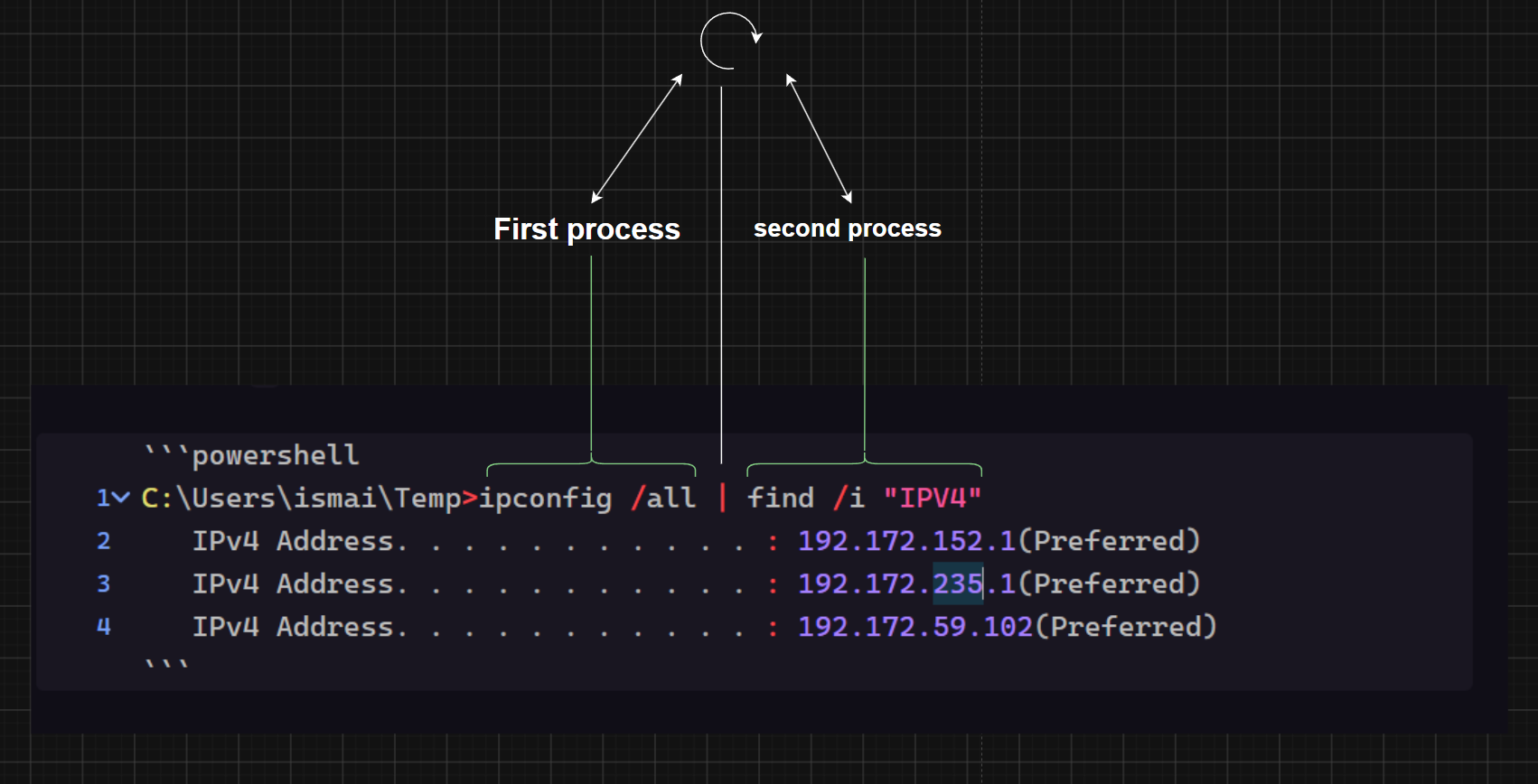
The picture explains how the pipeline works. First he takes the output of the first command, Once he takes it, the pipeline gives the output from first command to second command and he give us the result
What is &?#
The & operator allows us to execute multiple commands on the same line.
For example:
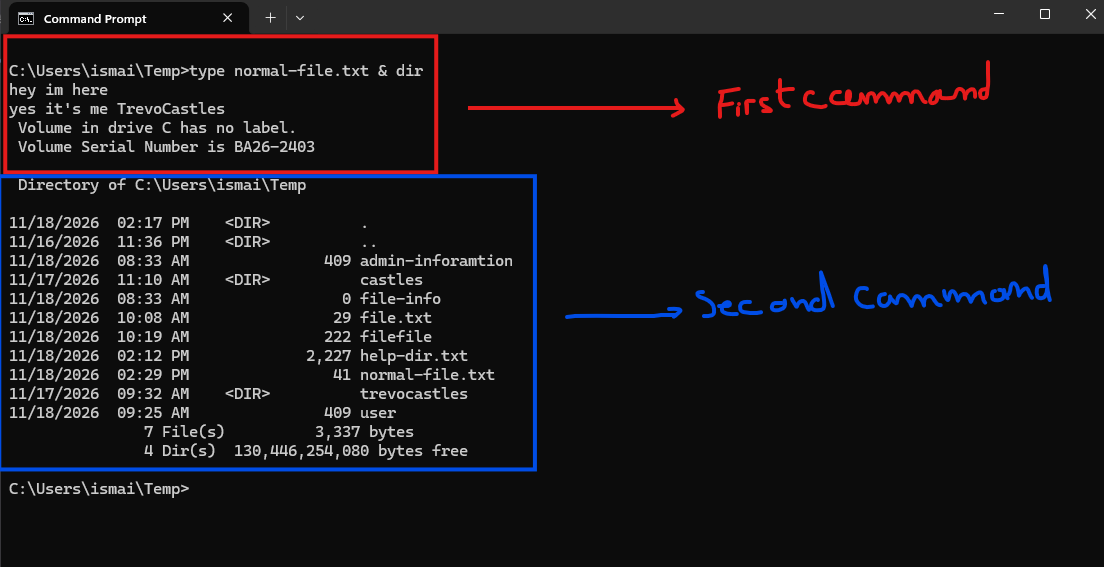
type normal-file.txt & dirLet me explain something very important. When we use &, the second command will execute regardless of whether the first command succeeds or fails.
For example, even if the first command encounters an error, the second command will still execute as long as it is valid.
Deleting Files#
We have two commands that can remove or delete in the file. The first one is del. And the second one is erase they have the same mission and no difference between the two commands
del#
Let's use the first del command.
C:\Users\ismai\Temp>md test-del

C:\Users\ismai\Temp>cd test-del

C:\Users\ismai\Temp\test-del>echo "TrevoCastles" > file1.txt

C:\Users\ismai\Temp\test-del>dir
 Volume in drive C has no label.
 Volume Serial Number is BA26-2403

 Directory of C:\Users\ismai\Temp\test-del

11/18/2026  10:47 PM    <DIR>          .
11/18/2026  10:47 PM    <DIR>          ..
11/18/2026  10:48 PM                17 file1.txt
               1 File(s)             17 bytes
               2 Dir(s)  145,264,730,112 bytes free

C:\Users\ismai\Temp\test-del>del file1.txt

C:\Users\ismai\Temp\test-del>dri
'dri' is not recognized as an internal or external command,
operable program or batch file.

C:\Users\ismai\Temp\test-del>erase#
There is no difference between del and erase
For example
C:\Users\ismai\Temp\test-del>dir
 Volume in drive C has no label.
 Volume Serial Number is BA26-2403

 Directory of C:\Users\ismai\Temp\test-del

11/18/2026  10:51 PM    <DIR>          .
11/18/2026  10:47 PM    <DIR>          ..
11/18/2026  10:50 PM                17 file.txt1
11/18/2026  10:51 PM                17 file.txt2
11/18/2026  10:51 PM                17 file.txt3
11/18/2026  10:51 PM                17 file.txt4
11/18/2026  10:51 PM                17 file.txt5
11/18/2026  10:51 PM                17 file.txt6
               6 File(s)            102 bytes
               2 Dir(s)  145,026,129,920 bytes free

C:\Users\ismai\Temp\test-del>erase file.txt2 file.txt3

C:\Users\ismai\Temp\test-del>dir
 Volume in drive C has no label.
 Volume Serial Number is BA26-2403

 Directory of C:\Users\ismai\Temp\test-del

11/18/2026  10:52 PM    <DIR>          .
11/18/2026  10:47 PM    <DIR>          ..
11/18/2026  10:50 PM                17 file.txt1
11/18/2026  10:51 PM                17 file.txt4
11/18/2026  10:51 PM                17 file.txt5
11/18/2026  10:51 PM                17 file.txt6
               4 File(s)             68 bytes
               2 Dir(s)  145,026,154,496 bytes free
Gathering System Information#
Now we have information about how we can use the command line in this section we will learn how to find information or how we can search for information inside Windows aka Gathering System Information
Before talking about information gathering you need first to ask yourself about - What is the computer's hostname?
- Which operating system and version is running?
- What access do I have inside the network?
- What is the resource I have inside the operating system or the network?
- Which user is currently logged in?
First, you need to understand the operating system. That it's useful and there, give you I think you intended to say something related to privilege escalation. we will in this section, learn how we can get information inside the operating system because this is not only errors or vulnerabilities inside the operating system, This is important knowledge for a penetration tester., a reader, or hacker, whatever. But we forget something like the Human errors or mistakes, like sensitive information, credentials ... This is not exactly about vernabatis or something like this. Now we will be learning
- how we can handle on file operator system
- how we can search inside the directories
- what is the category of the of directories?
What Types of Information Can We Gather from the System?#
And I want, with you remembering, this is just an introduction for information: not all techniques, not a techniques expert. This is only for an introduction to how you can get information from the system.
As I told you earlier you need to ask yourself a question like,
- Where exactly can I search?
- What file can have a sensitive credential?
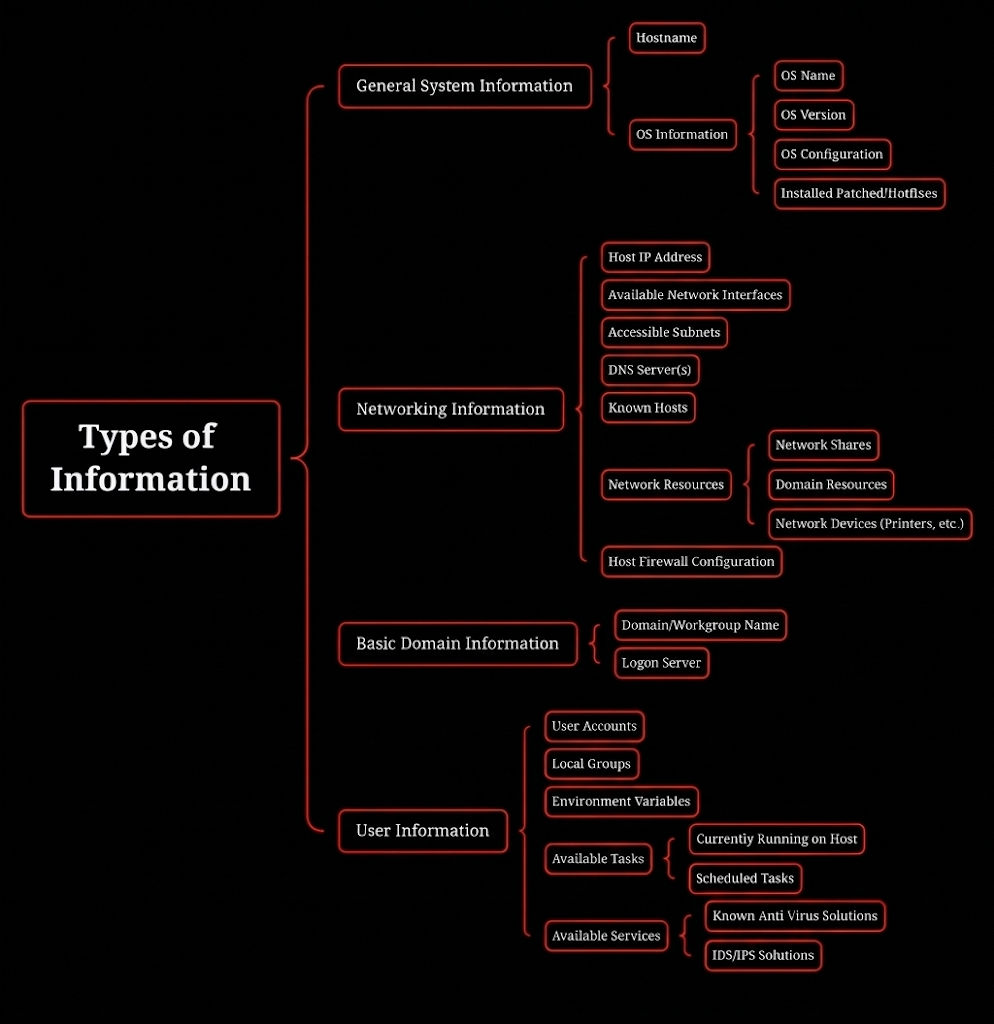
- Where can I first start? I will try to explain all of this , to answer all of the question you need. A basic of understanding the different of information inside the system look at the diagram below.
| Type | Description |
|---|---|
General System Information | Contains information about the overall target system. Target system information includes but is not limited to the hostname of the machine, OS-specific details (name, version, configuration, etc.), and installed hotfixes/patches for the system. |
Networking Information | Contains networking and connection information for the target system and system(s) to which the target is connected over the network. Examples of networking information include but are not limited to the following: host IP address, available network interfaces, accessible subnets, DNS server(s), known hosts, and network resources. |
Basic Domain Information | Contains Active Directory information regarding the domain to which the target system is connected. |
User Information | Contains information regarding local users and groups on the target system. This can typically be expanded to contain anything accessible to these accounts, such as environment variables, currently running tasks, scheduled tasks, and known services. |
We have some folders in the table that can help you to enumerate the operator system. Once we have access to the operator system, we need to use some questions like
- What permissions does the user account have?
- What groups does our user belong to?\
- What is a resource? Can the user have access?
How Do We Get This Information?#
Now we will learn some commands that help us enumerate the operating system.
These commands are very useful because they allow us to navigate through directories, read files, and gather information about the target system.
For example, we can identify the operating system and its version. Once we have this information, we can search Google or Exploit-DB for known vulnerabilities that match our system.
If we find a suitable exploit, we may be able to use it to perform privilege escalation.
Systeminfo Output#
systeminfoC:\Users\Administrator>systeminfo
Host Name: APPONFLY-VPS
OS Name: Microsoft Windows Server 2025 Standard
OS Version: 10.0.26100 N/A Build 26100
OS Manufacturer: Microsoft Corporation
OS Configuration: Standalone Server
OS Build Type: Multiprocessor Free
Registered Owner: N/A
Registered Organization: N/A
Product ID: 00493-00186-65636-AA034
Original Install Date: 11/29/2024, 7:43:36 AM
System Boot Time: 11/19/2026, 4:00:56 PM
System Manufacturer: Microsoft Corporation
System Model: Virtual Machine
System Type: x64-based PC
Processor(s): 1 Processor(s) Installed.I want to explain why relying on only one enumeration technique is not a good idea for a penetration tester.
A penetration tester should know multiple techniques to enumerate an operating system. For example, some commands may be monitored or logged by security systems. Therefore, relying on only one method can limit the information we can collect.
We should learn different ways to gather information, such as using commands, reading system files, and checking system configurations. This allows us to continue enumeration even when one technique is unavailable.
Examining the System#
As you can see, the systeminfo command provides us with information about the operating system, such as the hostname and the exact OS version. which can help us to enumerate the host.
Let's start with the hostname
C:\Users\ismai>hostname
DESKTOP-BG1MDTF
The second command is ver
C:\Users\ismai>ver

Microsoft Windows [Version 10.0.26200.9711]
This is some command that can help us to enumeration operating system. Like hostname , we can see what the name of the host is it and ver can give us the exact version.
Scoping the Network#
Now let's move on to basic network information and how our operating system communicates with other systems over a network.
We can use simple command line tools to gather information about the network, such as IP addresses, MAC addresses, and network connections.
For example, the ipconfig command helps us identify network configuration details, such as our IP address, subnet mask, and default gateway.
To get more detailed information, we can use ipconfig /all, which also displays the MAC address and DNS server information.
<SNIP>
Ethernet adapter VMware Network Adapter VMnet8:

   Connection-specific DNS Suffix  . :
   Link-local IPv6 Address . . . . . : fe80::fffc:62ef:1c14:e989%13
   IPv4 Address. . . . . . . . . . . : 192.168.235.1
   Subnet Mask . . . . . . . . . . . : 255.255.255.0
   Default Gateway . . . . . . . . . :

Wireless LAN adapter Wi-Fi 2:

   Connection-specific DNS Suffix  . : Home
   Link-local IPv6 Address . . . . . : fe80::efde:a2d6:9c1:5338%11
   IPv4 Address. . . . . . . . . . . : 192.172.11.101
   Subnet Mask . . . . . . . . . . . : 255.255.255.0
   Default Gateway . . . . . . . . . : 192.172.11.1
<SNIP>
And if you need a lot of details about config, you can use ipconfig /all to see. Every adapter connection with operators system
Understanding Our Current User#
The Whoami command allows us to identify the current user running in the command line.
This information is important during enumeration because it helps us understand which user we are working with and what privileges we have.
We can also use different flags with the Whoami command to gather more information about the current user, such as their SID, group memberships, and privileges.
This information can help us identify potential privilege escalation opportunities.
C:\Users\ismai>whoami
desktop-bg1mdtf\ismai
The whoami command displays the computer name or domain name followed by the username, depending on whether the current account is a local or domain account.
Checking Out Our Privileges#
We can use whoami /priv to display the privileges associated with the current access token and check whether each privilege is enabled or disabled.
This information helps us understand what actions we are allowed to perform and whether any of our privileges could be useful for privilege escalation.
C:\Users\ismai>whoami /priv

PRIVILEGES INFORMATION
----------------------

Privilege Name                Description                          State
============================= ==================================== ========
SeShutdownPrivilege           Shut down the system                 Disabled
SeChangeNotifyPrivilege       Bypass traverse checking             Enabled
SeUndockPrivilege             Remove computer from docking station Disabled
SeIncreaseWorkingSetPrivilege Increase a process working set       Disabled
SeTimeZonePrivilege           Change the time zone                 Disabled
Investigating Groups#
Once we have gathered information about the current user and the privileges they have, we need to check which groups the user belongs to.
Understanding group memberships helps us identify additional permissions and privileges that the user may have through these groups.
We can use the whoami /groups command to display all the groups associated with the current user.
Group Name                   Type             SID
Mandatory Label\Medium Mandatory Level         Label         S-1-16-8192
Everyone          Well-known group S-1-1-0        Group used for deny only
Investigating Other Users/Groups#
Imagine you have access to a Windows computer as a normal user.
Your username is:
desktop-bg1mdtf\ismai- Are there other users on this computer?
- Are there other accounts on the network?
- Which groups exist?
- Are there users with higher privileges?
- Can we identify other possible access opportunities?
Sometimes In a company, computers are often connected to a Windows Domain. For example:
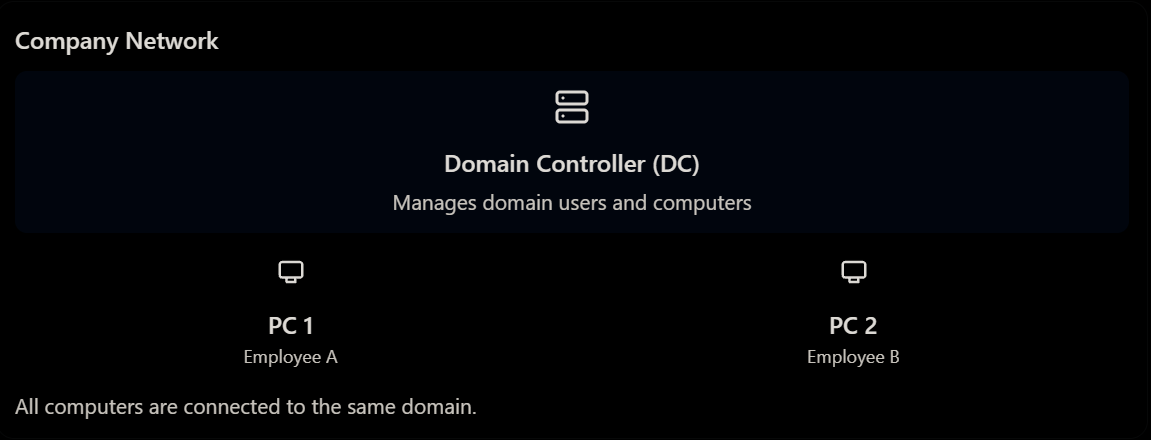
nota :This is just an example because the topic is only for learning CMD and PowerShell enumeration. This is not about active directory . This is just example.
Net User#
Let's take a look at the tool net the net user has some features and uses it for enumeration and the tool is very useful once you want getting information.
C:\Users\ismai>net users

User accounts for \\DESKTOP-BG1MDTF

-------------------------------------------------------------------------------
Administrator            DefaultAccount           Guest
ismai                    WDAGUtilityAccount       WsiAccount
The command completed successfully.
net users| User | Meaning |
|---|---|
| Administrator | That is a user default for high privilege. |
| ismai | Normal user account in this windows |
So that can show as what user exists in the operating system
- Account status
- Group memberships
- Password related settings
- Last password change
Now let's take an overview for a user for example
C:\Users\Administrator>net user Administrator
User name                    Administrator
Full Name
Comment                      Built-in account for administering the computer/domain
User's comment
Country/region code          000 (System Default)
Account active               Yes
Account expires              Never

Password last set            11/20/2026 2:55:49 AM
Password expires             Never
Password changeable          11/20/2026 2:55:49 AM
Password required            Yes
User may change password     Yes

Workstations allowed         All
Logon script
User profile
Home directory
Last logon                   11/20/2026 2:59:36 AM

Logon hours allowed          All

Local Group Memberships      *Administrators
Global Group memberships     *None
The command completed successfully.
Pentester mindset: We use this command to discover other accounts and understand their properties.
Net Group vs Net Localgroup#
This is an important difference. Don't confuse these two commands
Let's take a look on net localgroup
This displays all local groups available on the current Windows computer I will explain important groups because the output is very important to understand.
C:\Users\ismai>net localgroup

Aliases for \\DESKTOP-BG1MDTF

-------------------------------------------------------------------------------
*__vmware__
*Access Control Assistance Operators
*Administrators
*Backup Operators
*Cryptographic Operators
*Device Owners
*Distributed COM Users
*Event Log Readers
*Guests
*Hyper-V Administrators
*IIS_IUSRS
*Network Configuration Operators
*OpenSSH Users
*Performance Log Users
*Performance Monitor Users
*Power Users
*Remote Desktop Users
*Remote Management Users
*Replicator
*System Managed Accounts Group
*User Mode Hardware Operators
*Users
The command completed successfully.
Let's understand this line:
Aliases: Another name Windows uses for local groups.
DESKTOP-BG1MDTF: my computer's hostname.
net localgroup: Displays groups that exist on your local computer.
nota : So, this command is showing you the local groups on your computer, not all groups on the network.
Let's talk now about the different groups. And what is the role of all groups?
 1. Administrator
the group of administrators has high-privilege permission that can make a change to the operator system, edit anything on the operator system, for example. The task of the operator system change system setting basically Members of the Administrators group have extensive administrative permissions that allow them to manage Windows, modify system settings, and access many protected resources when running with appropriate privileges.
Copy
- Create and delete user accounts.
- Install and uninstall software.
- Install drivers.
- Manage Windows services.
- Change system settings.
- Manage other groups.
- Access many protected system resources.
Penetration tester : that we need to access it because there is a high privilege escalation and we need to identify which user has access to it.
 2. Backup Operators
So the backup group can help and can make a backup in the file system.
and They have special backup and restore rights, commonly associated with:
SeBackupPrivilege
SeRestorePrivilege
Example: Imagine a company has important files on a server. A backup operator needs to make copies of those files, even when normal file permissions would prevent ordinary reading.
<SNIP>
Sharing Files#
File sharing is a feature that allows users to access files and folders over a network.
Let's say we have a company with multiple employees. Instead of sending files through emails or messages, the company can store files on a central computer or server and share them with authorized users over the network.
In Windows, file sharing commonly uses a protocol called SMB (Server Message Block).
From a security perspective, shared folders are important because incorrect permissions may allow unauthorized users to access sensitive information or modify important files.
In this section, we will only learn the fundamentals of file sharing and how to identify shared resources.
Before working with shared resources, we need to ask ourselves some questions:
- Do I have permission to access the shared folder?
- Can I read, write, modify, or execute files?
- Does the shared folder contain sensitive information that needs protection?
- Are the share permissions configured correctly?
Let's start with the net share command.
This command displays the shared resources hosted on the local Windows computer.
net shareC:\Users\ismai>net share
Share name Resource Remark
-------------------------------------------------------------------------------
C$ C:\ Default share
IPC$ Remote IPC
ADMIN$ C:\WINDOWS Remote Admin
The command completed successfully.The diagram below can show you how the protocol SMB allow multiple computers to access shared files and folders over a network.
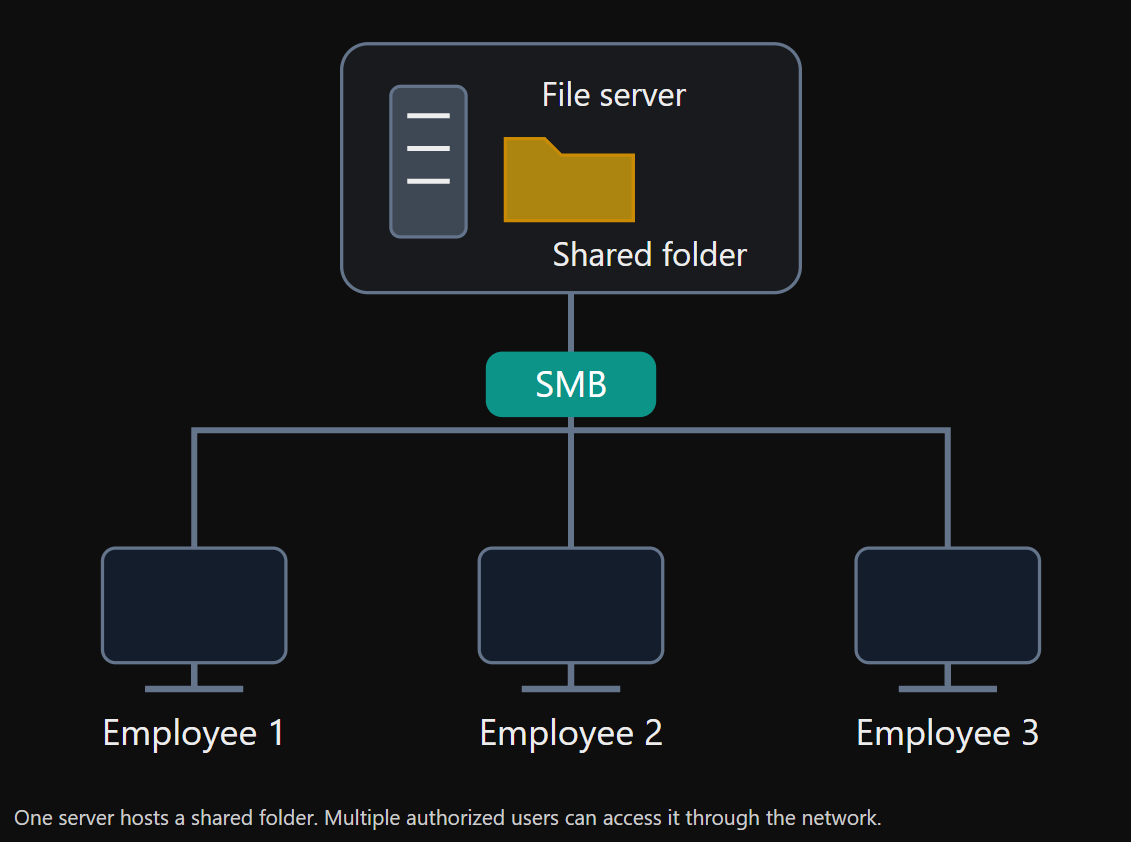
In the future we will learn how you can enumerate the SMB protocol but in the blog there is only just information, not exactly a tutorial to how to enumeration I will make a block for enumeration. That can be more effective because I don't want a mix between subject
Piecing Things Together#
I want to explain something important. When we use different commands to gather information from a Windows operating system, each command gives us a different piece of information.
For example, whoami helps us identify our current user, while systeminfo gives us information about the operating system.
Once we combine all these pieces of information, we can build a clearer picture of the operating system, the network, and the company's environment.
This information helps us understand our current access, permissions, privileges, and possible security weaknesses.
Think of it like a puzzle. Every command gives us a new piece, and when we put these pieces together, we can better understand the entire environment.
This is why enumeration is an important part of penetration testing and security assessments.
Finding Files and Directories#
In the previous section, we learned how to gather information about a Windows operating system. Now, we will learn how to search for files, locate applications and find specific text inside files.
let's start command where#
what is where : where is a command line can help you indintfay a path file and that that can help example do once you want search for file you can only type name but By default, the where command searches the current working directory and the directories listed in the PATH environment variable
C:\Users\ismai\Temp>where file.txt
C:\Users\ismai\Temp\file.txt
as we can see in the example the command where retrieve the real path for the file , now i want explain something can make you confused. once you use
dir
 Volume in drive C has no label.
 Volume Serial Number is BA26-2403

 Directory of C:\Users\ismai\Temp

11/26/2026  10:15 PM    <DIR>          .
11/25/2026  10:01 PM    <DIR>          ..
11/17/2026  11:10 AM    <DIR>          castles
11/23/2026  10:53 PM               600 for-sure.txt
11/23/2026  10:53 PM             4,000 islam.txt
11/26/2026  10:14 PM    <DIR>          test-del
11/17/2026  09:32 AM    <DIR>          trevocastles
               2 File(s)          4,600 bytes
               5 Dir(s)  168,737,497,088 bytes free

C:\Users\ismai\Temp>where ipconfig
C:\Windows\System32\ipconfig.exe
on the example up we i dont have the file have any name ipconifg so why command where give me the result for ipconfig because the PATH once you use the ipconfig CMD locates and executes ipconfig.exe from C:\Windows\System32 without changing the current working directory. because any command did you run it the
PATH is an environment variable that stores a list of directories. CMD uses this list to locate external executable programs, while the where command uses it to search for matching files.
C:\Users\ismai\Temp>echo %PATH%
C:\WINDOWS\system32;C:\WINDOWS;C:\WINDOWS\System32\Wbem;C:\WINDOWS\System32\WindowsPowerShell\v1.0\;C:\WINDOWS\System32\OpenSSH\;C:\Program Files\Git\cmd;C:\Program Files\NVIDIA Corporation\NVIDIA App\NvDLISR;C:\Program Files (x86)\NVIDIA Corporation\PhysX\Common;C:\Program Files\nodejs\;C:\Program Files\KeePassXC\;C:\Users\ismai\.local\bin;C:\Users\ismai\AppData\Local\Microsoft\WindowsApps;C:\Users\ismai\AppData\Local\spicetify;C:\Users\ismai\AppData\Local\Programs\Microsoft VS Code\bin;C:\Users\ismai\AppData\Roaming\npm;C:\Users\ismai\AppData\Local\Programs\Microsoft VS Code\bin\copilot-shim;C:\Users\ismai\.t3\bin
if you see CMD uses the directories stored in PATH to locate external commands go in search if the command inside one of all dir that why the ipconfig give us the result let's me explain as i can
anther example
where whoamiThe where command searches the current directory and the directories listed in PATH, even if it finds a match in the current directory.
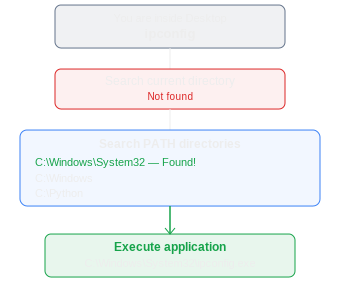
when we understand the where command let's see some flag ther have and one of the most command i use it is /R
where /R C:\Users\student bio.txt| Part | Purpose |
|---|---|
where | Searches for a file. |
/R | Enables recursive searching. |
C:\Users\student | Starting directory. |
bio.txt | File name to search for. |
1. How does it search?
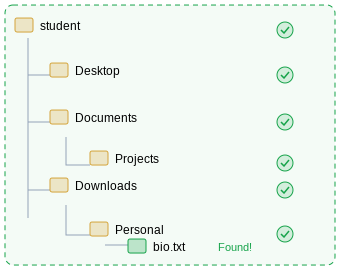
when you use /r the where command can search inside subdirectory let's see the example
C:\Users\ismai>where /r C:\Users\ismai\ for-sure.txt
C:\Users\ismai\Temp\for-sure.txt
As you can see in the example i use command where in ismai director once i use flag /r where command search in all subdirectory for ismai and finally give us the the path for the file
However, it does not search the parent directory C:\Users or other users' directories.
| Behavior | where | where /R |
|---|---|---|
| Searches current directory | Yes | If specified |
| Searches PATH directories automatically | Yes | No |
| Searches subdirectories recursively | No | Yes |
| Changes current directory | No | No |
| Searches parent directories | No | No |
:LiTimer: the flag /r can take some minutes to give you the result
Finding Files and Directories find#
The first thing you need to understand is that where and find have different purposes.
| Command | Purpose |
|---|---|
where | Searches for the location of a file. |
find | Searches for specific text inside a file or command output. |
1. What is `find#
The find command is a Windows command-line utility used to search for a specific string inside a file or command output.
When it finds matching text, it displays the entire matching line.
Imagine we have a file called example.txt containing the following information:
example.txt
Operating System: Windows 11 Hostname: LAB-PC IP Address: 192.168.1.10 Username: student IP Address: 192.168.1.20
We want to display only the lines containing IP Address.
find "IP Address" example.txt---------- EXAMPLE.TXT
IP Address: 192.168.1.10
IP Address: 192.168.1.203. Important switches#
| Switch | Purpose |
|---|---|
/I | Ignores uppercase and lowercase differences. |
/N | Displays matching line numbers. |
/V | Displays lines that do not contain the specified string. |
/C | Counts matching lines. |
/I Case-insensitive searching
By default, find is case-sensitive
find /I "ip address" example.txtThis will not match IP Address because the capitalization is different
---------- EXAMPLE.TXT
IP Address: 192.168.1.10
IP Address: 192.168.1.20/N — Display line numbers
find /N "IP Address" example.txt---------- EXAMPLE.TXT
[3]IP Address: 192.168.1.10
[5]IP Address: 192.168.1.20This is useful when working with large files and you want to know exactly where the matching text appears.
/V — Invert the search
find /V "IP Address" example.txt---------- EXAMPLE.TXT
Operating System: Windows 11
Hostname: LAB-PC
Username: studentInstead of displaying lines containing IP Address, it displays lines that do not contain it.
/C — Count matching lines
find /C "IP Address" example.txt---------- EXAMPLE.TXT: 2Remember that /C counts matching lines, not the total number of times the string appears.
Management text with sort command#
Let's start. What is the short command The sort command sorts entire lines of text. And we will learn some switches on command short.
| Before sorting | After sorting |
|---|---|
David | Alex |
Alex | Alex |
John | Bob |
Alex | David |
Bob | John |
once we execute the command below
sort names.txtBy default, the command displays the sorted results in the terminal. It does not modify the original file.
| Switch | Purpose |
|---|---|
/unique | Removes duplicate entries from the output. |
/O | Saves the sorted results to an output file. |
/R | Reverses the sorting order. |
unique switch#
let's take example on switch /unique before use unique switch what is it, The /unique switch removes duplicate lines from the sorted output., imagine the file have the content below
| Before unique |
|---|
David |
Alex |
John |
Alex |
Bob |
and we need to remove all duplicate lines from the output.
sort users.txt /uniquenota: the doesn't save output. That only shows you How will the file look We will learn how we can save the output.
| After unique |
|---|
Alex |
Bob |
David |
John |
As we can in example we only see alex exit only one time
save the output /O#
if we want save the output we need only use /O and type the new name of the file let's take a example for that
sort users.txt /unique /O sort-users.txtThe /O switch saves the sorted output to a specified file. It can overwrite an existing output file.
reversing the sort /R#
When you use /R, the command sorts the lines in reverse order, from Z to A.
sort user.txt /R| After sorting |
|---|
John |
David |
Bob |
Alex |
Alex |
found the sciprt
Management Services Controller Utility#
before using command or anything we need to take a knowledge. for what is services and what is different between Process , Service , Program
Let's start. What exactly is what are the services we can say the services, like SSH, DHCP, DNS, and network configuration. There is a lot for example once you boot your Windows, Windows automatically can ransom services, let's say by default. For example sounds drivers , and Network configuration, Windows Event ... It's not all of the services running , just what Windows needs. And you can run any services once you need it.
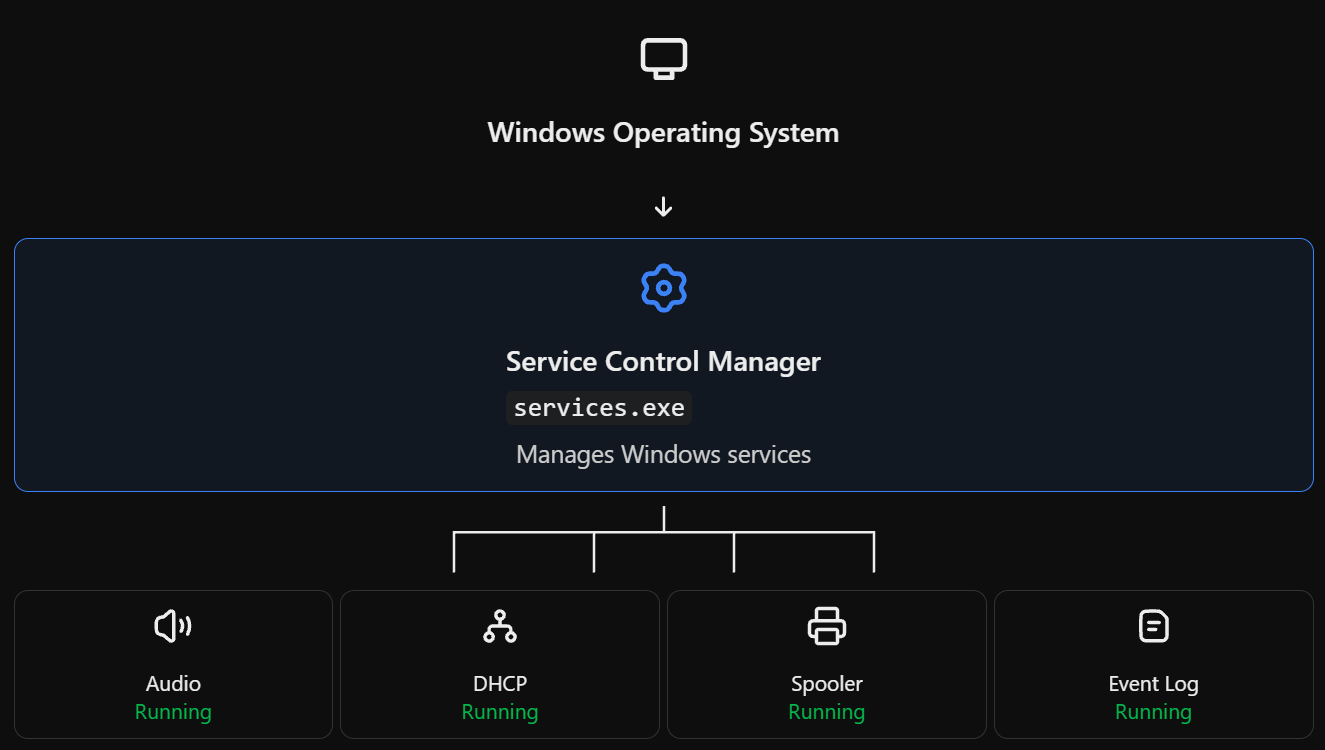
| Service name | Display name | Function |
|---|---|---|
Audiosrv | Windows Audio | Manages audio functionality |
Spooler | Print Spooler | Manages print jobs |
Dhcp | DHCP Client | Manages automatic IP configuration |
Schedule | Task Scheduler | Manages scheduled tasks |
EventLog | Windows Event Log | Manages Windows event logging |
Some services start when Windows boots. Others start only when needed. 0xffosos
Now let's move on to the program. Imagine you have Google Chrome. That is a program is stored on your disk. Once you double-click on Google Chrome, that can make a process run the program on the rum, every single process has a unique process ID but we have something process ID. Inside the process ID we have something Sub process ID I don't want to go deep into explaining the process but there is something, let's say, a child process or you can call it a sub process. There is some difference but we don't need it now.
Once, explain what the services process is, whatever. Now we can go to use the command line.
The sc command#
We can use the sc command to communicate with the Service Control Manager (SCM) to retrieve information about services and control them
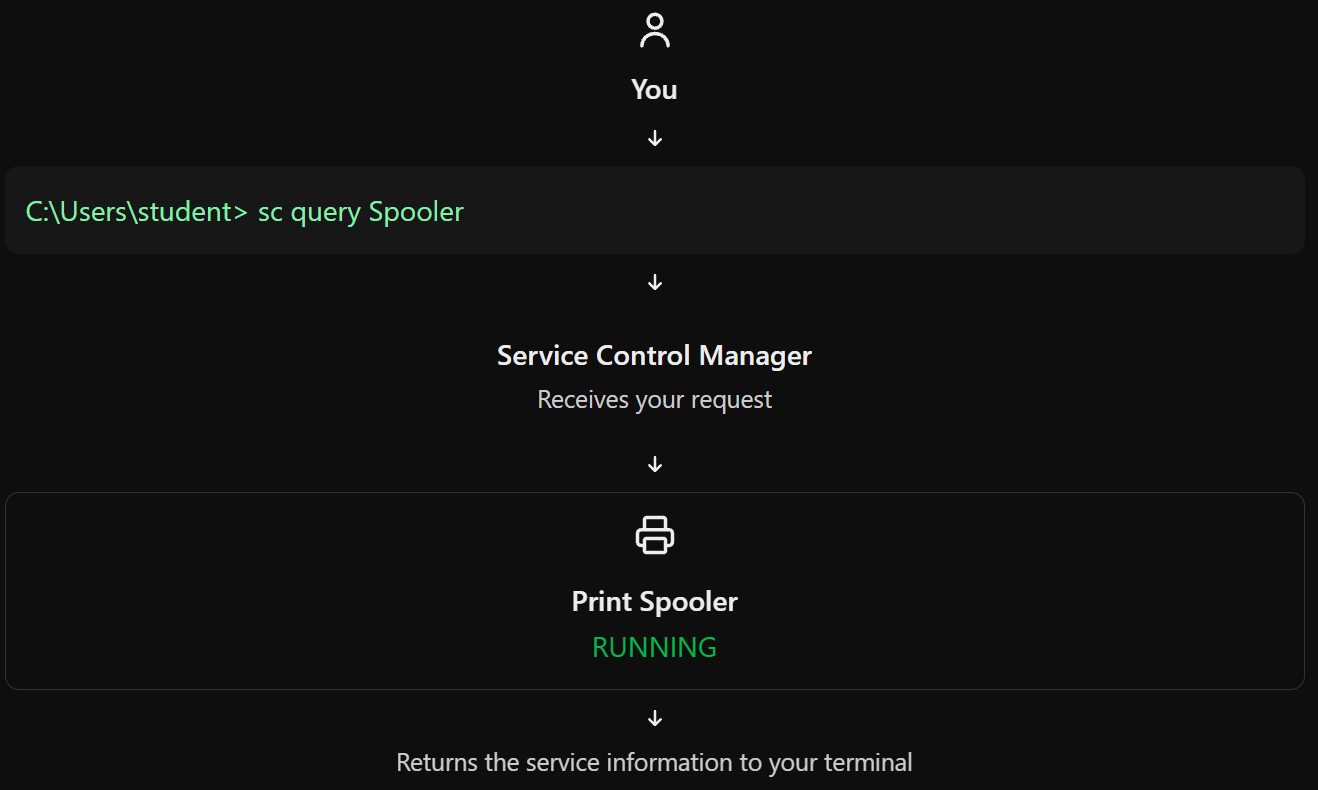
Remember: sc.exe is the tool can management and control the services?
1 sc query
A word query that shows you information about the service
sc command#
This command allows you to retrieve information about services without modifying them.
sc queryif you only want Windows services, use
sc query type= service
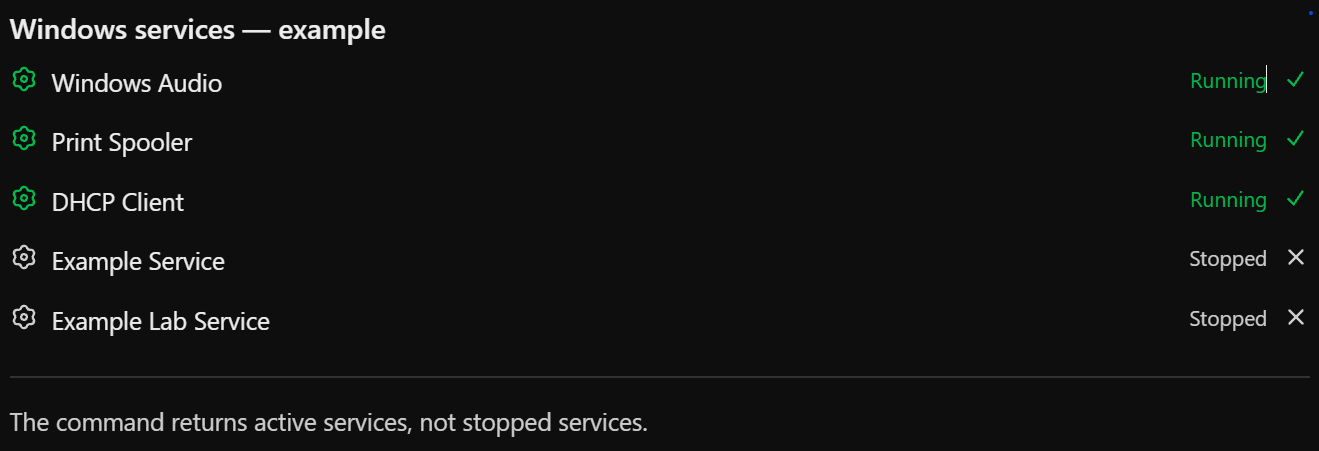
If you want to retrieve every single service even if the service is active or inactive
sc query type= service state= all2 using a query to specific services
If you don't want to see all the services, you can specify the name of which services did you want the information about?
sc query SpoolerSERVICE_NAME: Spooler
TYPE : 110 WIN32_OWN_PROCESS (interactive)
STATE : 4 RUNNING
(STOPPABLE, NOT_PAUSABLE, IGNORES_SHUTDOWN)
WIN32_EXIT_CODE : 0 (0x0)
SERVICE_EXIT_CODE : 0 (0x0)
CHECKPOINT : 0x0
WAIT_HINT : 0x0- the server name can show you the name of the service. - The
STATEfield shows the current state of the service. In this example,4 RUNNINGmeans the service is currently running. - And if you see we have something, name it, type, and I will explain blowe
Understanding service types#
Now we will learn of the type services.
Now we will learn what the type of services is we have two types and we will learn and take examples for them
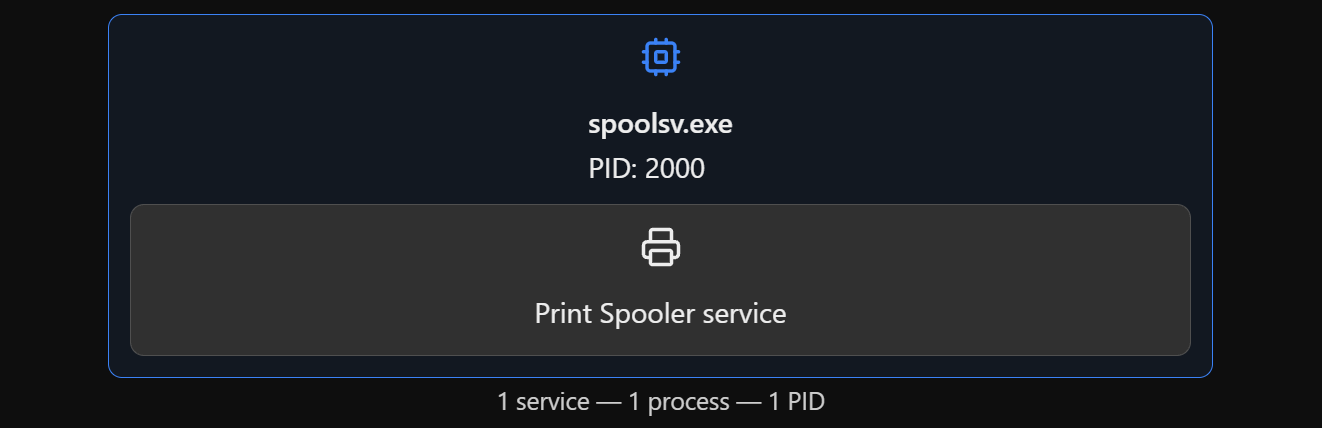
WIN32_OWN_PROCESS means that the service runs in its own dedicated process without sharing that process with other services
WIN32_OWN_PROCESS
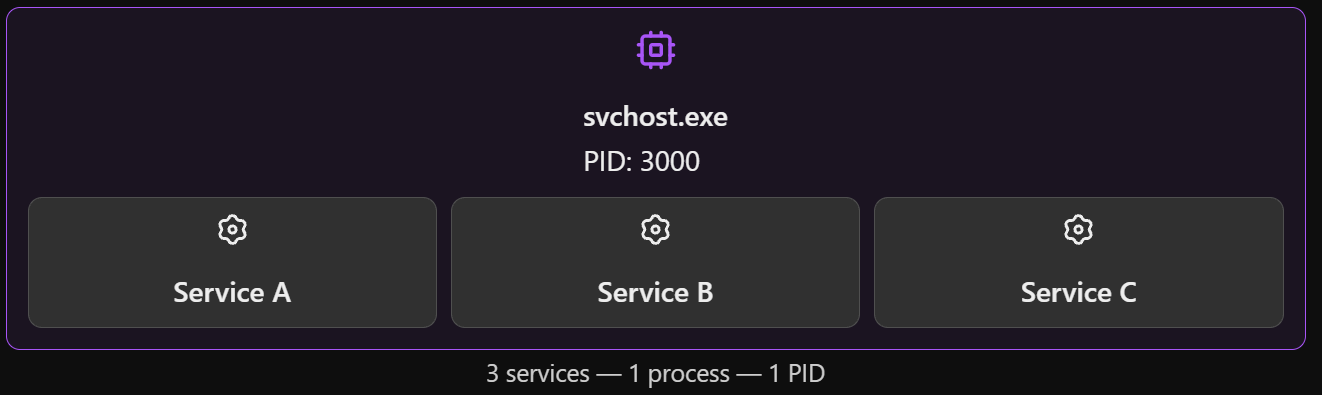
The second type of the process is shared and that can share the process ID with multiple services.
WIN32_SHARE_PROCESS
sc queryex#
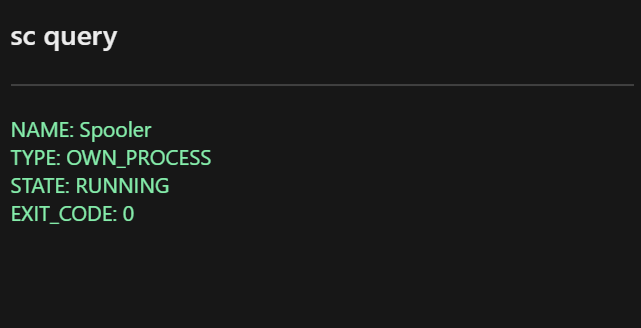
So we have queryex there is the same idea but there are some differences. When you use query without EX, that can show you the output below.
But once you use sc queryex that can show you the PID or let's say process ID.
7 - Starting and stopping services
If you want to start some services, you can only use the command below.
Starting a service
sc start SpoolerStopping a service
sc stop SpoolerChecking its state
sc query SpoolerStarting and stopping a service requires appropriate permissions.
nota: Stopping a service does not delete the service or its executable.
So we have some tools make make the same job. For example
tasklistWorking With Scheduled Tasks#
Scheduled tasks can management, what task did you want the operating system to use automatically without any event for you? So you can manage some tasks that can be done automatically. You can see the time, see the action, and see what you want. Dad, what are we learning now?
If you want to see what the task is, already did you have?
schtasks /queryThat can show you all the tasks that you have already.
schtasks /query /V /fo list| Parameter | Meaning |
|---|---|
/query | Retrieve information |
/v | Display detailed information |
/fo | Specify the output format |
list | Display information as a list |
Creating a scheduled task#
Now we will learn how you can make your task. Wow you can specifically type the name, everything.
Imagine you want to open the calculator every day. At 10:00
schtasks /create /sc daily /tn "opencale" /tr "calc.exe" /st 10:00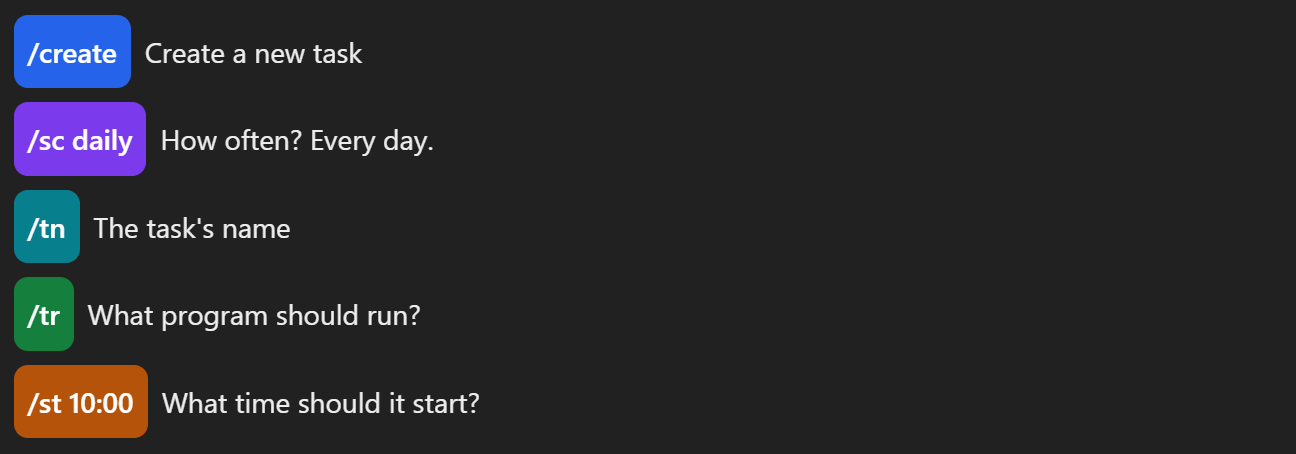
4. How to specify the time#
/sc means schedule type.
| Parameter | Meaning |
|---|---|
/sc once | Run once |
/sc daily | Run every day |
/sc weekly | Run every week |
/sc hourly | Run every hour |
/sc minute | Run every minute |
/sc monthly | Run monthly |
If you want to check your task that you created, you can use the command below.
schtasks /query /tn "opencale" /v /fo listRun it immediately:
schtasks /run /tn "opencale"Change its action
schtasks /change /tn "opencale" /tr "calc.exe"Delete your practice task
schtasks /delete /tn "opencale"Product by : TrevoCastles